
iTerm2 SSH Setup on Mac: Profiles, Jump Hosts, ssh config
iTerm2 is not an SSH client. It calls the system ssh, which means everything you write in ~/.ssh/config takes effect immediately. Get that file right and iTerm2 stops being just a terminal and becomes a light connection manager.
This guide covers four things in order: the config file, profiles, jump hosts and forwarding, and the point where a different tool makes more sense.
Step 1: turn ~/.ssh/config into a host list
# Global defaults: keepalive plus connection reuse, fewer drops on bad networks
Host *
  ServerAliveInterval 30
  ServerAliveCountMax 3
  ControlMaster auto
  ControlPath ~/.ssh/sockets/%r@%h-%p
  ControlPersist 10m
Host bastion
  HostName 203.0.113.9
  User ops
  IdentityFile ~/.ssh/id_ed25519
Host db-prod
  HostName 10.0.3.11
  User deploy
  Port 2222
  ProxyJump bastion
  LocalForward 5433 127.0.0.1:5432
A few details matter more than the rest:
ControlMasterreuses an existing connection for a second session on the same host, so new tabs open instantlyHost *belongs at the bottom: OpenSSH keeps the first value it sees for each parameter, so a wildcard at the top silently cancels the per-host values below it- Run
ssh -G db-prodto see what actually resolves, instead of guessing - The
ControlPathdirectory must exist:mkdir -p ~/.ssh/sockets - The file needs
600permissions, or ssh refuses to read it
Why a wildcard block at the top stops working
This is not a style preference. OpenSSH keeps the first value it obtains for each parameter, and a later block cannot override it.
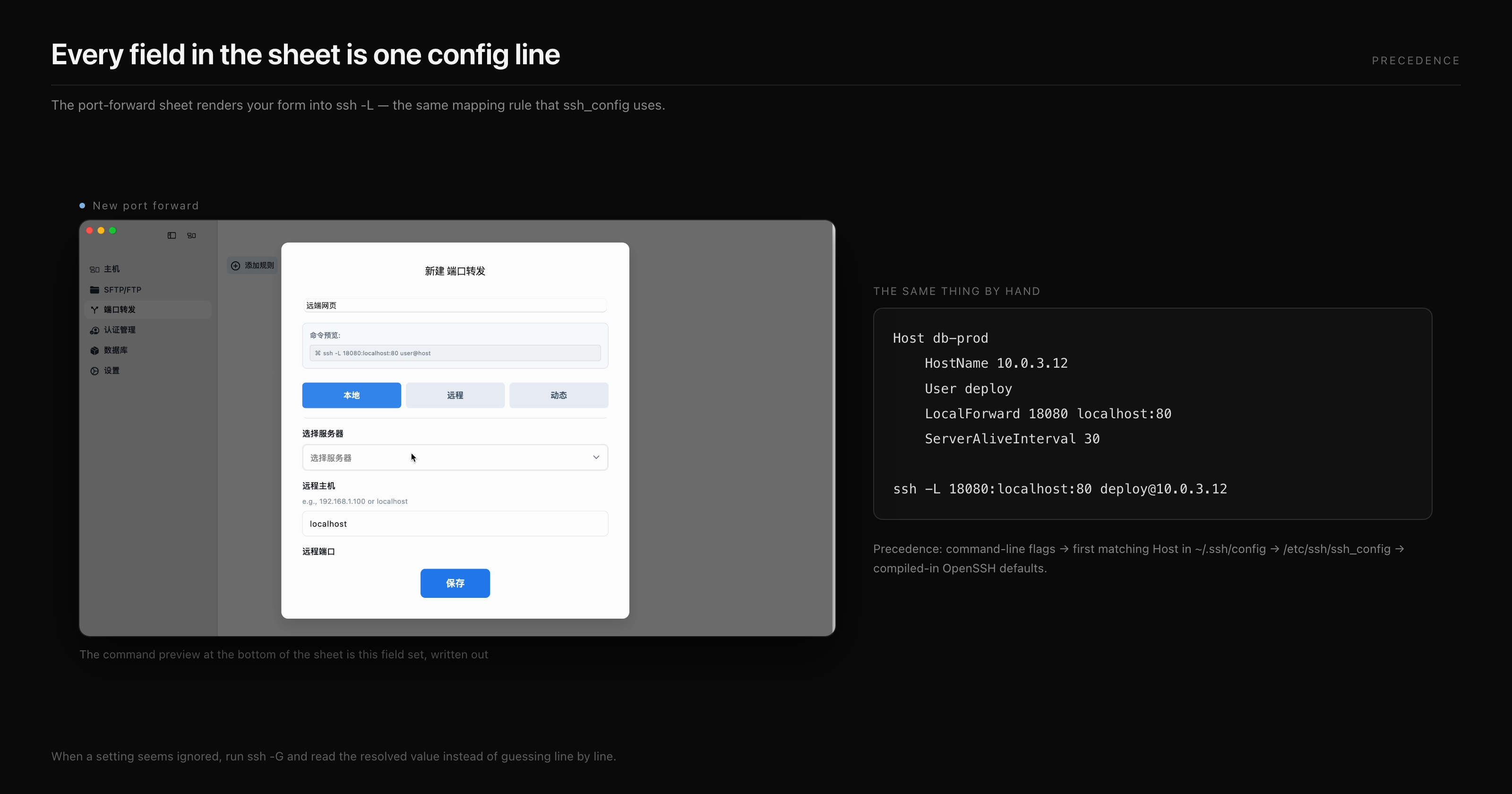
So the order is specific first, wildcard last. Put Host db-prod at the top and Host * at the bottom; parameters the specific block does not set fall through to the wildcard. To see what actually won, ask ssh itself — ssh -G db-prod | grep -i forward — instead of tracing the file by eye.
Step 2: turn repeated work into a click with profiles
An iTerm2 profile can run a command on open. Set Command to ssh db-prod and you get a one-click entry; enable “Send text at start” and you can also cd into a directory, start tmux, or tail a log.
Three combinations that earn their keep:
- Read-only checks: send
cd /var/log && tail -f app.logon start - Fixed working directory: use
ssh db-prod -t 'cd /srv/app && exec $SHELL -l' - Connection reuse: run
ssh -MNf db-prodfrom one profile, then share that link across every window
Profiles also remember font, colours, and key mappings, which is why plenty of people never leave iTerm2.
Step 3: jump hosts and the three forwarding modes
| Need | config line | Command equivalent |
|---|---|---|
| Single jump host | ProxyJump bastion |
ssh -J bastion host |
| Chained jump hosts | ProxyJump a,b |
ssh -J a,b host |
| Local forwarding | LocalForward 5433 127.0.0.1:5432 |
ssh -L 5433:127.0.0.1:5432 host |
| Remote forwarding | RemoteForward 8080 127.0.0.1:80 |
ssh -R 8080:127.0.0.1:80 host |
| Dynamic (SOCKS5) | DynamicForward 1080 |
ssh -D 1080 host |
Prefer ProxyJump over the older ProxyCommand nc pattern in production. The first one lets ssh handle jump-host authentication and keys itself, which keeps the chain simpler and the error messages readable.
The most common forwarding failure is a local port already in use. When LocalForward 5433 reports Address already in use, pick another local port; nothing on the server needs to change.
Step 4: split panes and broadcast
Split panes plus “Broadcast input to all panes” will run one command across four machines at once, which is genuinely useful for a quick configuration change.
The limits are equally clear: broadcast only covers the current window and disappears when it closes, and you arrange the panes by hand. There are no groups and no way to save the set. Past a handful of machines the method stops paying for itself.
When iTerm2 stops being enough
- More than twenty or thirty hosts, and finding one by config alias gets slow
- Credentials shared across machines, where a password change means editing many records
- Work that also needs RDP, VNC, or a database client
- Session logs for auditing or for reconstructing what happened during an incident
That is where GUI clients take over. The comparison of SSH clients for Mac covers the four common options, and importing an SSH config into DartShell walks through the migration. For multi-hop production setups, see jump hosts in production.
Frequently asked questions
Does iTerm2 need its own SSH configuration?
No. iTerm2 calls the system ssh, so aliases, ports, keys, and jump settings in ~/.ssh/config apply directly. iTerm2 handles windows, panes, and shortcuts.
Why does a profile fail when the terminal works?
A profile runs a non-login shell, so PATH or the ssh agent may be missing. Setting Command to /usr/bin/ssh db-prod usually fixes it.
How do I avoid typing a passphrase every time?
Run ssh-add --apple-use-keychain ~/.ssh/id_ed25519 and add AddKeysToAgent yes and UseKeychain yes to the config. The keychain remembers it once and the system unlocks it.
Can iTerm2 store my password?
No, and it should not. Use keys, or a GUI client with an encrypted credential store. Writing passwords into scripts or config files costs more than the seconds it saves.
How do I run one command on several machines at once?
Split the panes and enable broadcast for ad-hoc work. For dozens of hosts, pssh or Ansible is the safer answer, at least because a failure tells you which machine broke.
Keep reading
- How to choose an SSH client on Mac: iTerm2, SecureCRT, Termius, and DartShell compared
- Jump hosts in production: multi-hop chains and audit requirements
- SSH local port forwarding: pulling an internal web app to localhost
- SSH private keys on a Mac: generating, permissions, passphrases
DartShell
Want a smoother remote ops workflow on macOS?
DartShell brings SSH, RDP, VNC, SFTP, and serial access together in one native macOS app, so you can reduce tool switching and repetitive setup.
Download DartShell