
SSH Local Port Forwarding on Mac: Open a Remote Web App with DartShell
A web app on your server listens only on its loopback address. How can you open it in a browser on your Mac without changing it to listen on a public interface?
Use SSH local port forwarding in DartShell to connect a local port on your Mac to the remote service. You need a working SSH connection to the server and a running web service. This example uses a service listening on the server's 127.0.0.1:28080.
What the connection gives you
Once the forwarding rule is running, open http://127.0.0.1:18080 in a browser on your Mac to reach the remote web app.
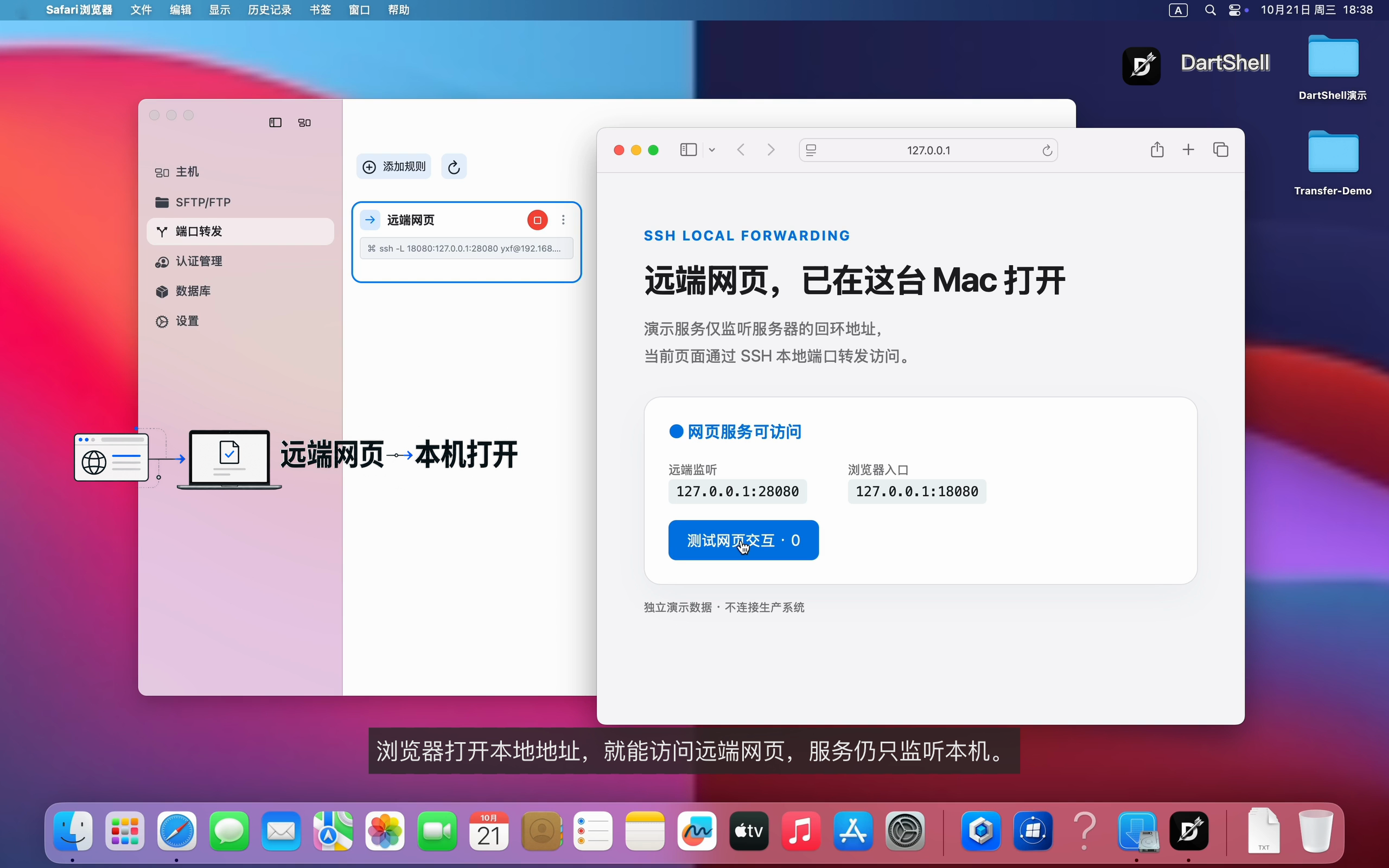
The forwarding rule is running on the left; Safari opens the test page on the right. 18080 is the entry port on your Mac; 28080 is the service port on the server. They do not have to match.
1. Add a local forwarding rule
In DartShell, open Port Forwarding (端口转发), click Add Rule (添加规则), and give the rule a recognizable name, such as Remote Web App.Choose Local (本地) as the forwarding type. Select the saved SSH connection that can log in to the server, and set the local port to 18080.
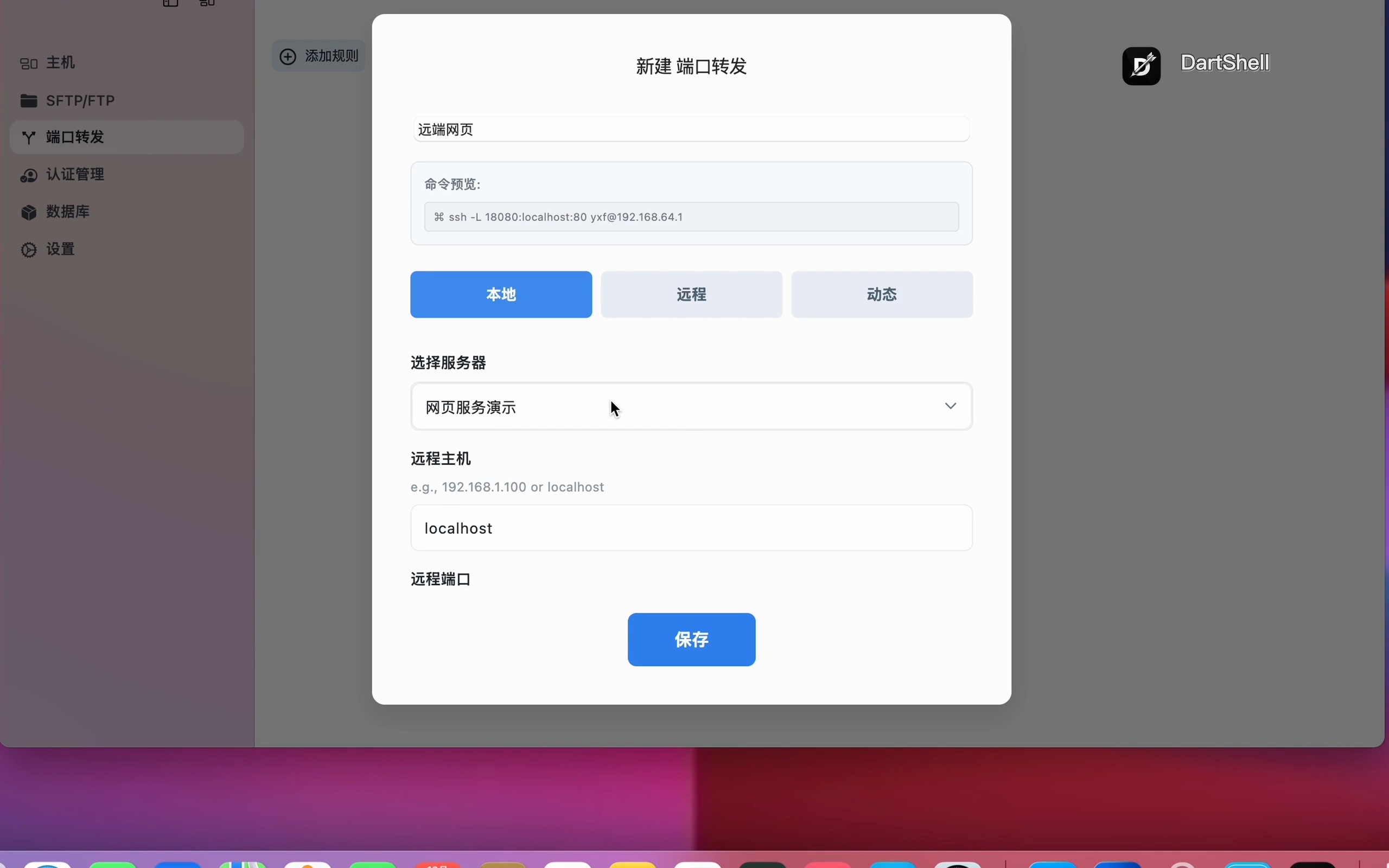
The screenshots use the Chinese interface. Follow the corresponding controls in your interface language; the addresses and ports have the same meaning.
2. Set the remote destination, save, and start
Because the web app runs on the selected SSH server, enter 127.0.0.1 as the remote host and 28080 as the remote port.
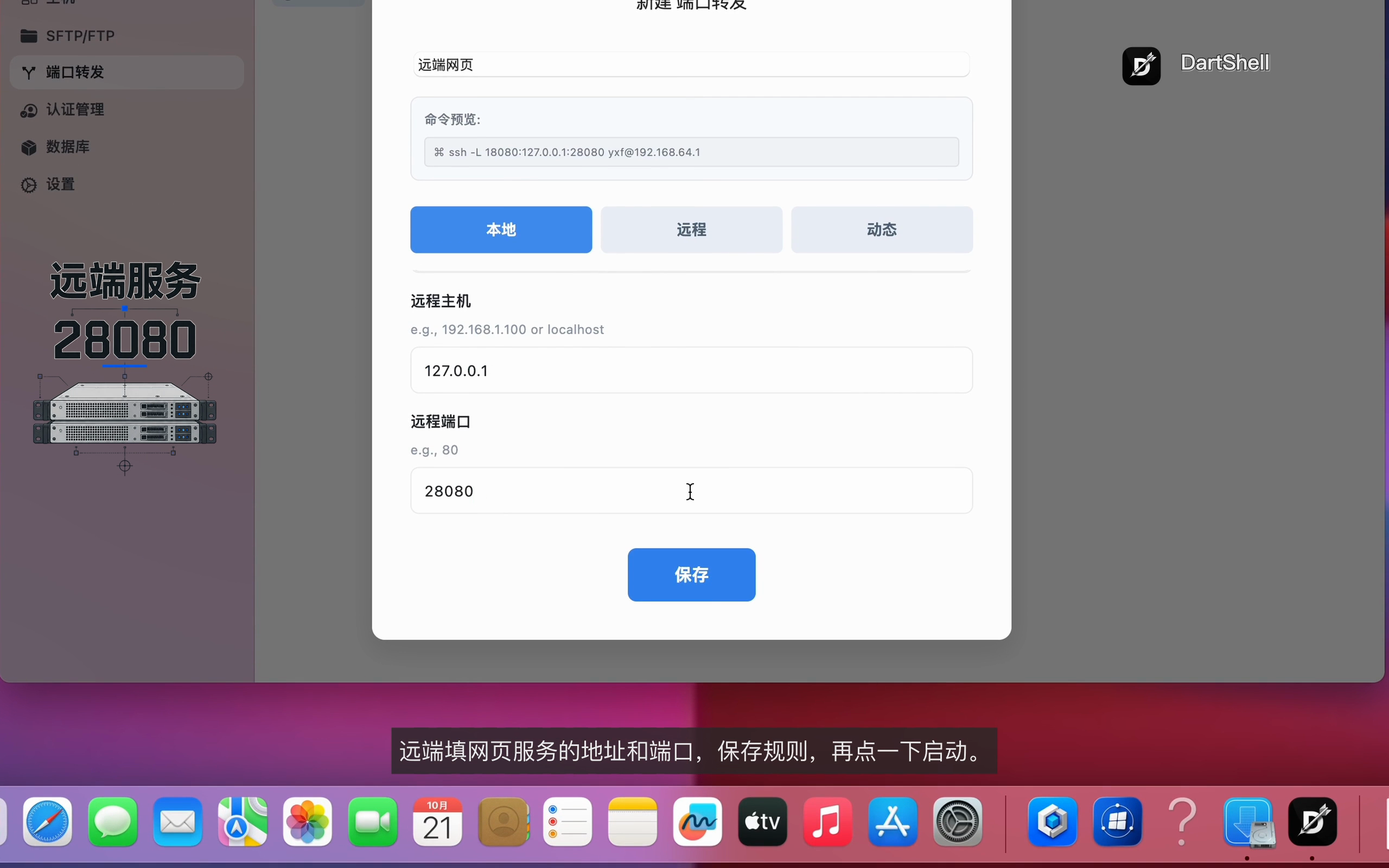
Save the rule, then start it from the rule list.
| Setting | Example | Meaning |
|---|---|---|
| Local port | 18080 |
Browser entry point on your Mac |
| Remote host | 127.0.0.1 |
The SSH server's own loopback address |
| Remote port | 28080 |
Port used by the remote web app |
The remote host's 127.0.0.1 means the SSH server itself. The same address in your Mac browser means your Mac. Replace the example ports with the ones your service actually uses.
3. Open the local address in your browser
On the Mac running the forwarding rule, open:
http://127.0.0.1:18080
Check that the remote page appears and that its buttons respond. The request path is:
Mac browser → local port 18080 → SSH tunnel → remote web service port 28080
The service in this example continues to listen only on the server's loopback address. The tunnel changes how your Mac reaches it; it does not change the service's listening address.This example uses an isolated test page. For your own setup, put the local entry point in the browser, and the remote service address and port in the forwarding rule.
Related workflows
DartShell
Want a smoother remote ops workflow on macOS?
DartShell brings SSH, RDP, VNC, SFTP, and serial access together in one native macOS app, so you can reduce tool switching and repetitive setup.
Download DartShell