
Import SSH Server Connections on Mac: A DartShell SSH Config Guide
If you already have a collection of SSH connections, changing clients should not require entering every address, port, and account again. DartShell can read an SSH config file, show a preview, and import the host entries together.
This guide uses SSH config import, rather than migrating an entire client database. Keep a backup of the original file before you start.
Prepare your SSH config file
A common location on Mac is ~/.ssh/config. In the file chooser, press Command + Shift + G to enter that path if the hidden .ssh directory is difficult to find.
A simple entry looks like this. Replace the example values with your own:
Host work-server
HostName 192.0.2.10
User deploy
Port 2222
Host is the connection name, HostName is the server address, User is the login account, and Port is the SSH port. The address above is for documentation, not a working server.
1. Choose the import source
Open DartShell's Hosts (主机) page and click Import (导入). In the import dialog, choose Import from .ssh/config (从 .ssh/config 导入), then select your file.
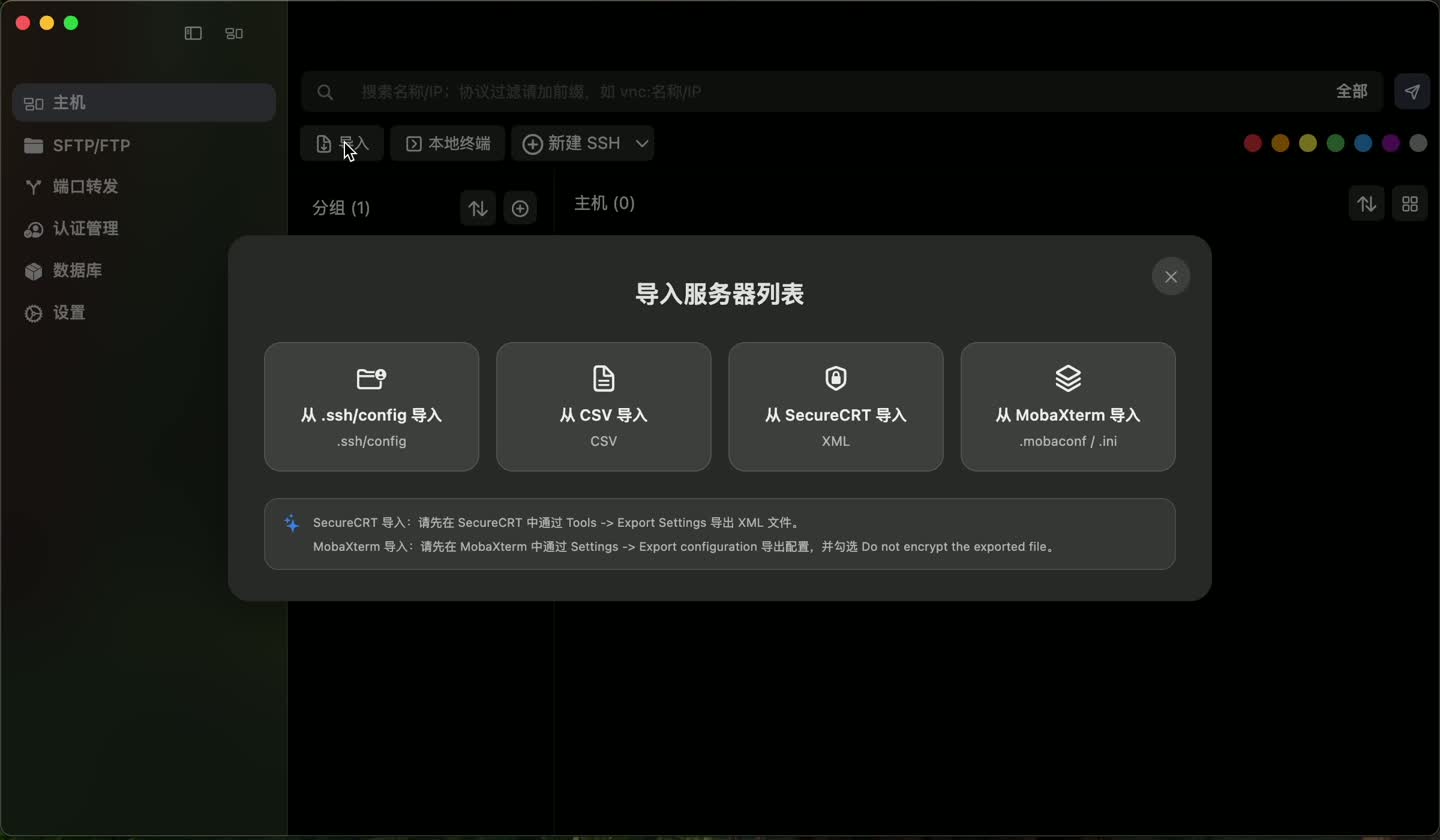
The screenshots use the Chinese interface. CSV, SecureCRT, and MobaXterm are separate import sources; renaming a file's extension does not make it suitable for this SSH config workflow.
2. Expand the preview and check the entries
After the file is read, expand the SSH Config group in Import Preview (导入预览). Check the connection names and server addresses, then click Import.
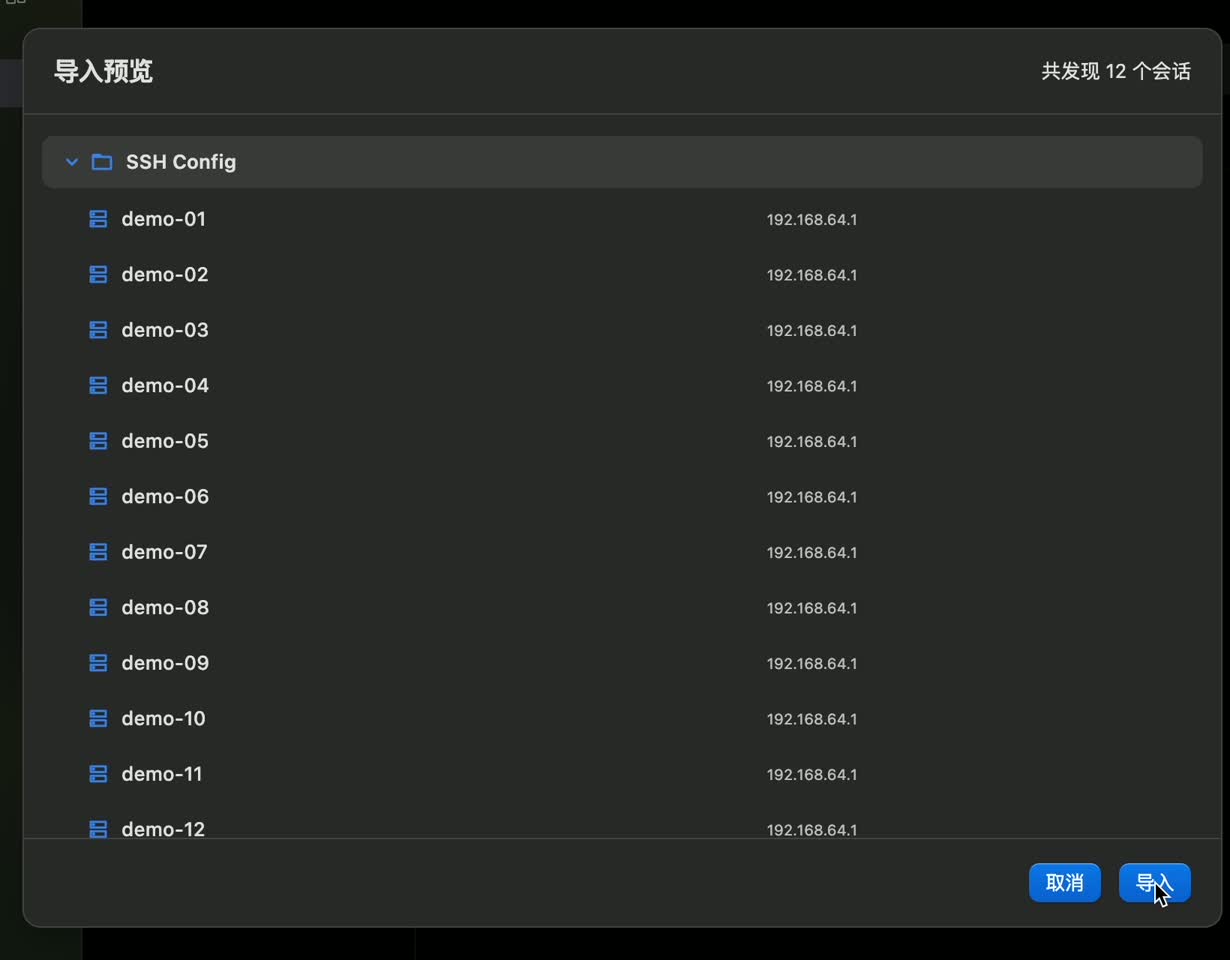
The count depends on your file. The number shown in the screenshot is an example, not an import limit.If the list is unexpected, cancel and inspect the source file instead of repeatedly importing it. Wildcard sections such as Host * and Host ? are not imported as individual hosts. Do not assume complex files will be interpreted with full OpenSSH behavior.
3. Read the result and return to Hosts
Check the Imported, Duplicate, and Failed counts. These describe imported host entries; they do not mean the servers have been successfully logged in to.
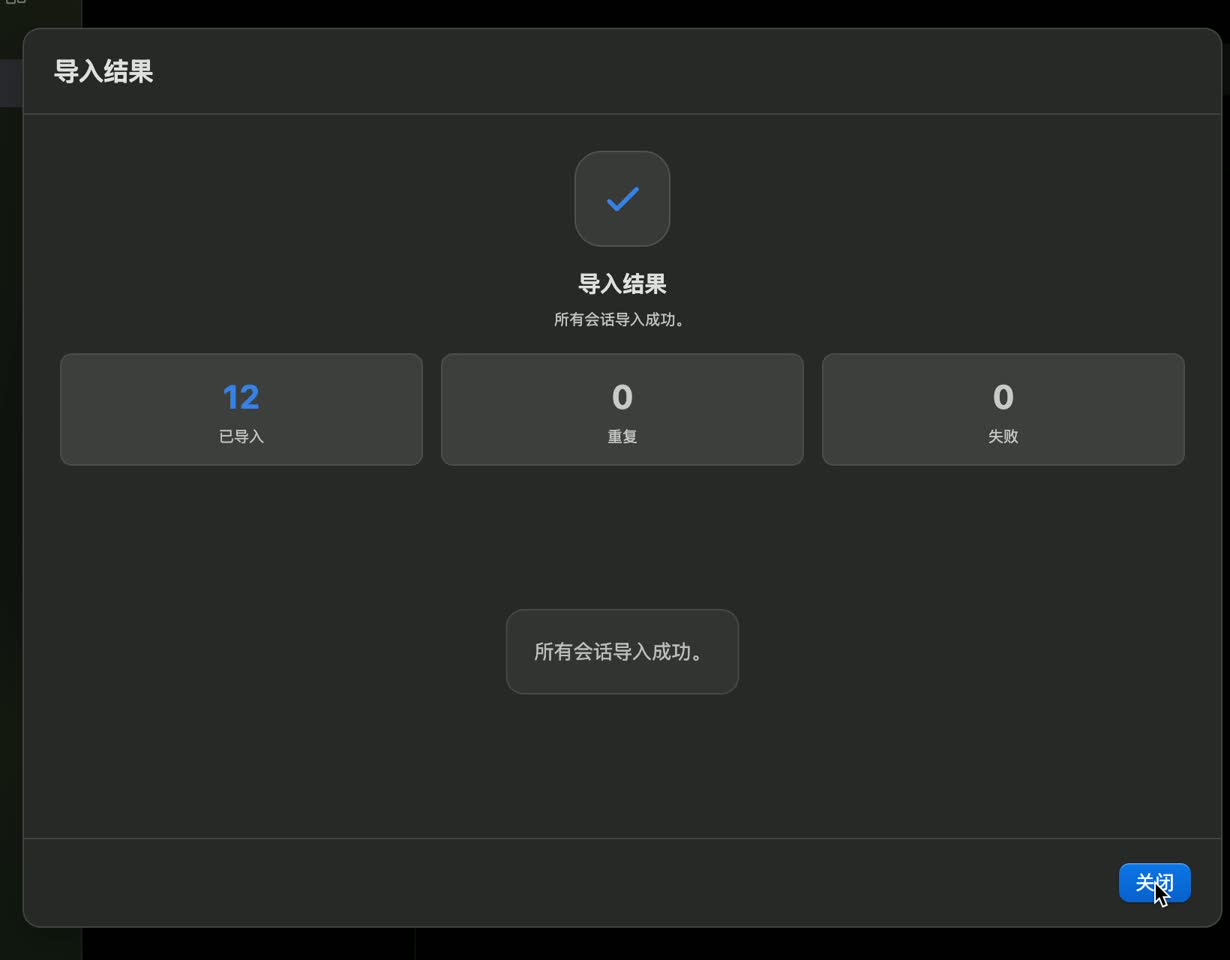
Close the result and open the SSH Config group in Hosts to find the imported entries.
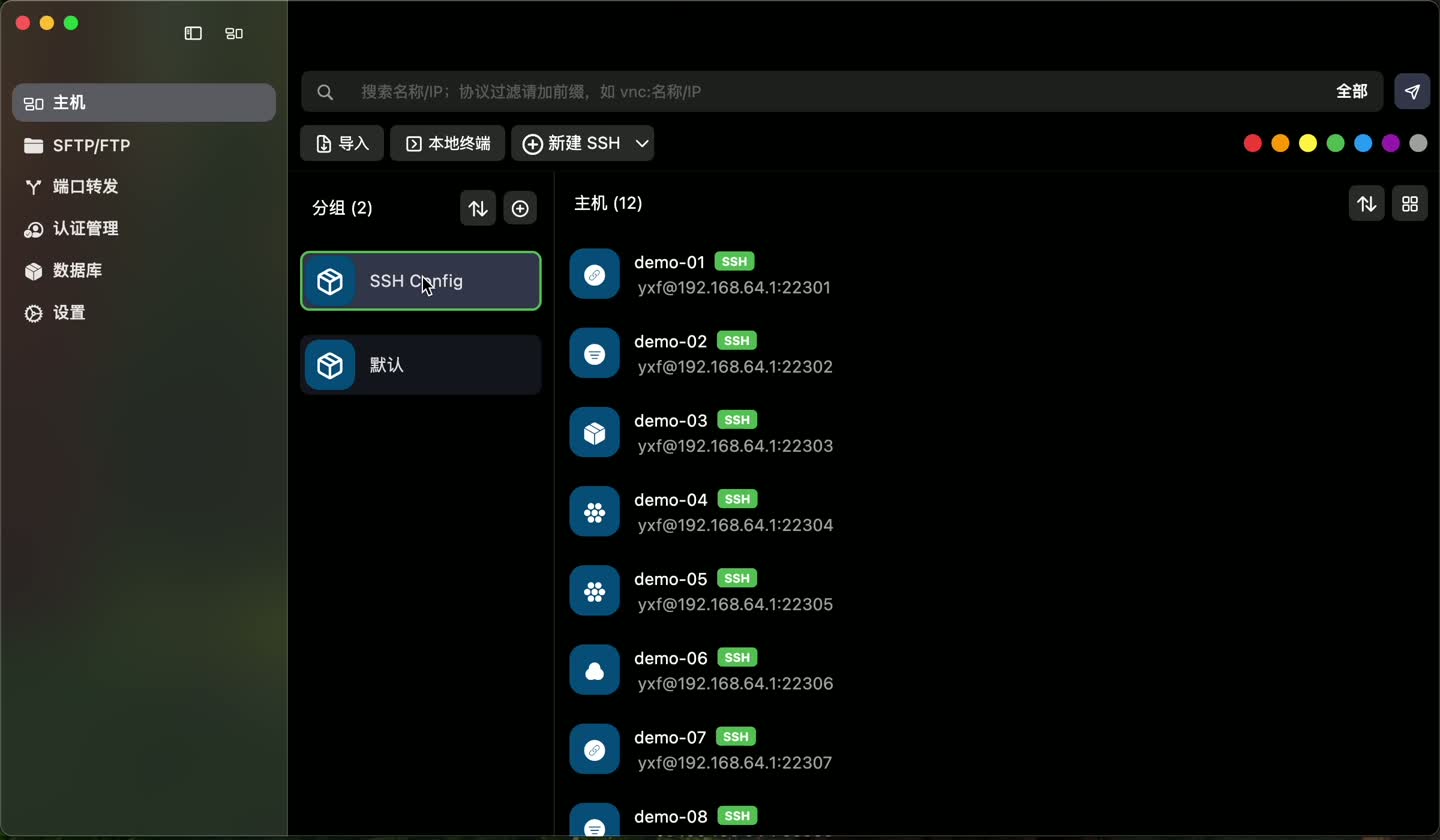
Verify authentication and special options
Open one connection, check its address, account, and port, then try logging in. **An imported entry is not proof that the connection is ready to use.**For IdentityFile, DartShell attempts to read the referenced private key. If the file is missing or unreadable, the host entry may still import without its key content. Select the correct authentication information in the connection afterward. A path in SSH config is not the key file itself.
The current importer primarily reads Host, HostName, User, Port, and IdentityFile. Check configurations relying on Include, Match, ProxyCommand, ProxyJump, or forwarding rules separately; do not assume those settings migrate completely.
The workflow is select the file → review the list → import → verify authentication and real connections. Keep your previous client until the connections you need have been tested.
Related workflows
DartShell
Want a smoother remote ops workflow on macOS?
DartShell brings SSH, RDP, VNC, SFTP, and serial access together in one native macOS app, so you can reduce tool switching and repetitive setup.
Download DartShell