
The Best SSH Client on Mac: iTerm2, SecureCRT, Termius, or DartShell?
After many people switch from Windows to Mac, one of the first things that feels unfamiliar is often something more important: remote connection tools suddenly become much harder to choose.On Windows, SSH clients like SecureCRT, Xshell, and MobaXterm are already mature enough. Connecting to servers, saving sessions, organizing groups, and transferring files all come with a ready-made workflow. On Mac, the situation immediately becomes different: many of the tools you used to rely on either do not have a Mac version, or although alternatives exist, the experience and usage patterns differ greatly from what you were used to.
If your question is, "What is the best SSH client on Mac?", the more practical answer is usually: there is no single best option, only the one that best fits your current workflow.
First, Figure Out Whether You Prefer the Command Line or a GUI
Before choosing an SSH tool, first think through one question clearly: what do you mainly rely on for remote operations?
If your habit is to open a terminal, type a host alias, and log in directly, and you are also willing to maintain .ssh/config, then on a Mac, iTerm2 is often already good enough. Its advantages are straightforward:
- Fast startup and lightweight operation
- Naturally fits into the macOS terminal workflow
- With
.ssh/config, you can organize commonly used machines, ports, and jump hosts clearly - Highly efficient for people who rely on the keyboard and command line long term
In this kind of scenario, a GUI tool may not bring much additional value. If you do almost all your daily work in the terminal, iTerm2 on Mac is a very solid SSH solution.But if you rely more on a graphical interface, want to manage hosts through a connection list, prefer using both mouse and keyboard, or need drag-and-drop SFTP file transfers, then the criteria change completely.
Why Many People Start Re-evaluating SSH Clients After Switching to Mac
Many people already have a fairly fixed workflow on Windows: a session tree on the left, multiple tabs on the right, and when transferring files, they simply switch to the SFTP panel. After moving this workflow to Mac, the problems start to appear:
- The tools they used most often do not have a Mac version
- Alternative tools work, but their connection management logic is different
- File transfer and SSH connections have to be handled in different applications
- Familiar visual workflows need to be relearned
What really affects the experience is usually these more specific actions:
- Whether finding a particular machine requires digging through many layers of groups
- Whether switching between connections feels smooth
- Whether file transfer requires opening another tool
- Whether, besides SSH, you also need to handle scenarios like remote Windows
Once these issues stack up, the differences between tools become very obvious.
Common Types of Options on Mac
If you break the requirements apart, remote connection tools on Mac can roughly be divided into the following categories.
1. Keep Using SecureCRT
If you have already been a long-time SecureCRT user, then continuing to use it on Mac is the option with the lowest migration cost.
It suits situations like these:
- You have already accumulated a large number of session configurations
- You are used to the original way of grouping connections
- You do not want to rebuild your workflow just because you switched operating systems
For this type of user, the key value of SecureCRT is stability and continuity.
2. Use a Modern SSH Tool Like Termius
If your core need is SSH, you want a more modern interface and cleaner visual design, you are comfortable with a subscription model, and you also need cross-platform support, then products like Termius are worth considering.
It is better suited for people who:
- Primarily use SSH connections
- Want a more graphical way to manage connections
- Value a consistent multi-platform experience
- Can accept a monthly subscription cost of a few dozen yuan
The direction of this type of tool is very clear: make SSH management more modern and more lightweight.
3. Use a More Complete Remote Connection Solution on Mac
There is another type of need that is actually quite common among Mac users: you do not just need SSH, but also want the same tool to cover other remote protocols, such as remote Windows; at the same time, you want an interface that feels more aligned with macOS usage habits, without being tied to a long-term monthly subscription.
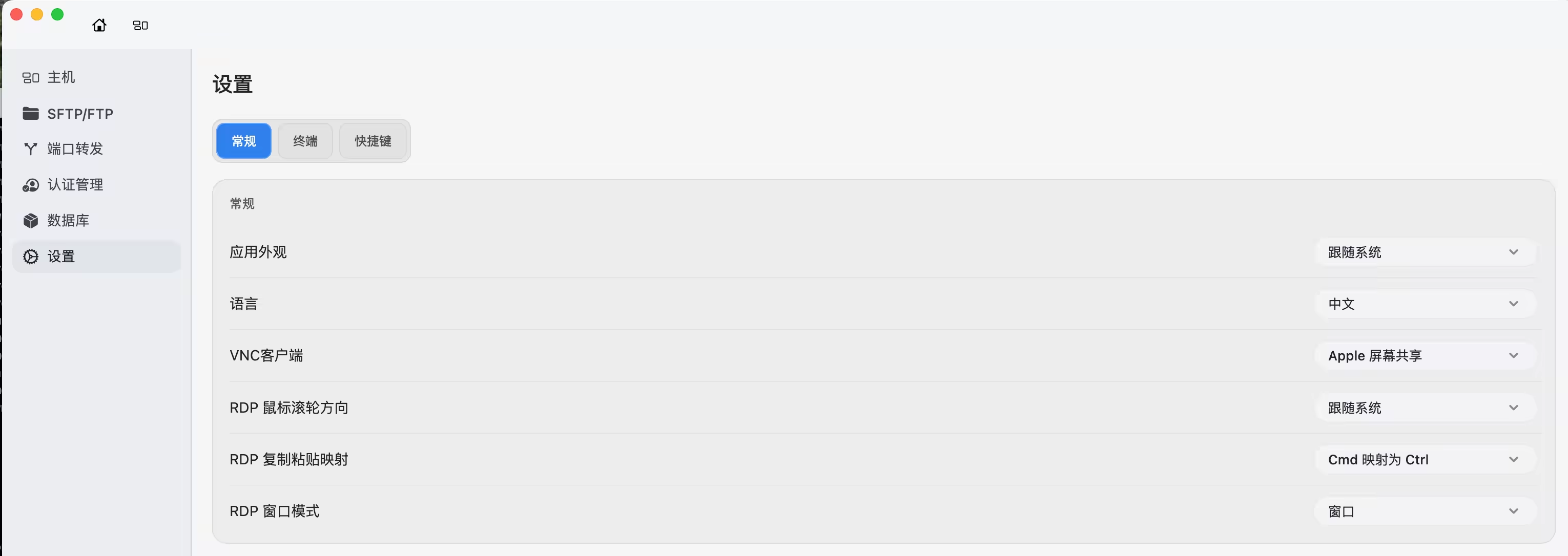
If your workflow is closer to this, then DartShell will be a more suitable choice.
It is better suited for scenarios like these:
- You mainly work on Mac
- You connect to Linux servers and also handle other remote connections
- You want a modern interface with an experience closer to native apps
- You want to keep connection management, file operations, and protocol switching in one tool as much as possible
- You do not want to be locked into a long-term subscription model
For this type of need, what DartShell solves is no longer just “can it connect over SSH,” but whether the entire remote workflow can become smoother.
How to Judge Which Tool Suits You Better
If you do not want to keep comparing different tools back and forth, you can judge directly based on how you work:
- Heavy command-line users: prioritize iTerm2
- Long-time SecureCRT users: keep using SecureCRT for the lowest migration cost
- Only need SSH and accept subscriptions: consider Termius
- Mainly work on Mac and also need to cover more remote protocols: take a look at DartShell
This way of judging is more effective than simply comparing “which one has more features.” Because once you get into real work scenarios, connection efficiency, file transfer, protocol switching, and everyday operating habits usually matter more than a feature list.
Closing
There is no single “best SSH client” on Mac that works for everyone.Some people need extreme command-line efficiency, some rely more on a graphical interface and drag-and-drop transfers, and some want one tool that covers both SSH and other remote connection scenarios. How you usually connect to servers, manage hosts, and transfer files basically determines which solution fits you best.
If you are looking for a remote connection tool that fits the Mac workflow better and supports more than just SSH, you can learn more about DartShell. More product information is also available on the official website: [)
DartShell
Want a smoother remote ops workflow on macOS?
DartShell brings SSH, RDP, VNC, SFTP, and serial access together in one native macOS app, so you can reduce tool switching and repetitive setup.
Download DartShell