
Connect Through an SSH Jump Host on Mac with DartShell
Your Mac cannot reach a production server directly, but a jump host can. Instead of logging in to the jump host and entering a second SSH command every time, save that route in the target server's connection in DartShell.
Select the saved SSH jump host, save the target connection, then open it.
Keep the jump host and target server separate
The path is Mac → SSH jump host → target server. You need permission to log in to both machines, SSH access from your Mac to the jump host, and access from the jump host to the target's SSH port.
Save two SSH host entries in DartShell:
- Jump host: Its address as reachable from your Mac, SSH port, and authentication details.
- Target server: Its address as reachable from the jump host, plus the target's own SSH port and credentials.
Use the target address from the jump host's point of view. Do not put the jump host's public address into the target entry again. The two servers need not share accounts, ports, or keys.
1. Open the target connection's advanced settings
Open Host Details (主机详情) for the target server and expand Advanced Settings (高级设置). Find Jump Servers (跳板服务器), choose Add Jump Server (添加跳板服务器…), and select the saved SSH jump host.
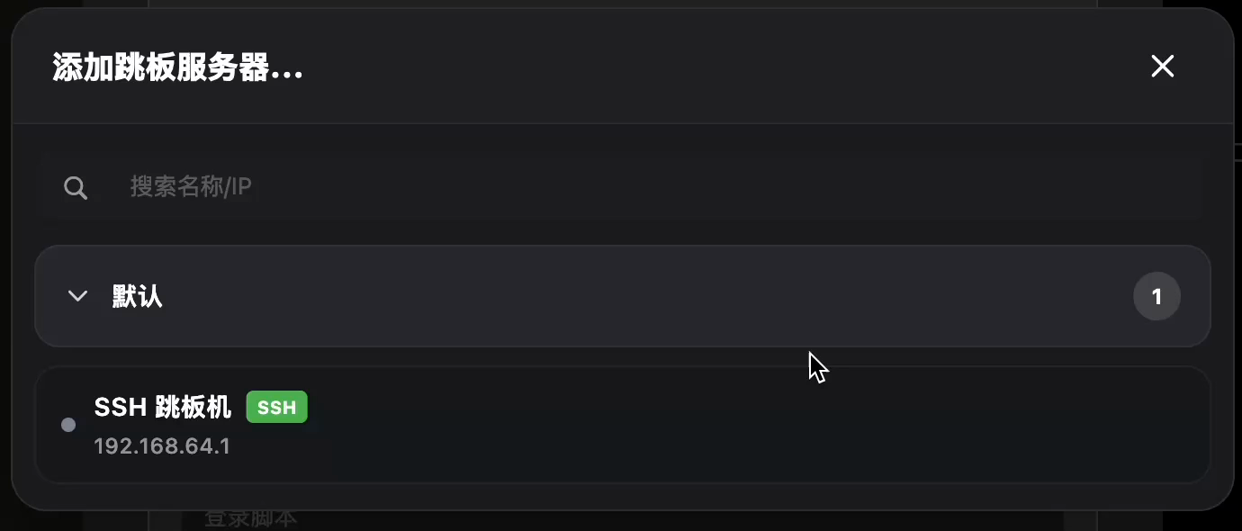
You are choosing the intermediate host while still editing the final target connection. If the jump host is absent from the list, save it as an SSH host first. Screenshots retain the Chinese interface so you can match the labels above to the actual controls.
2. Verify the selected host and save
The selected host name appears under Jump Servers. Check that it is the intended host, then save the target connection.
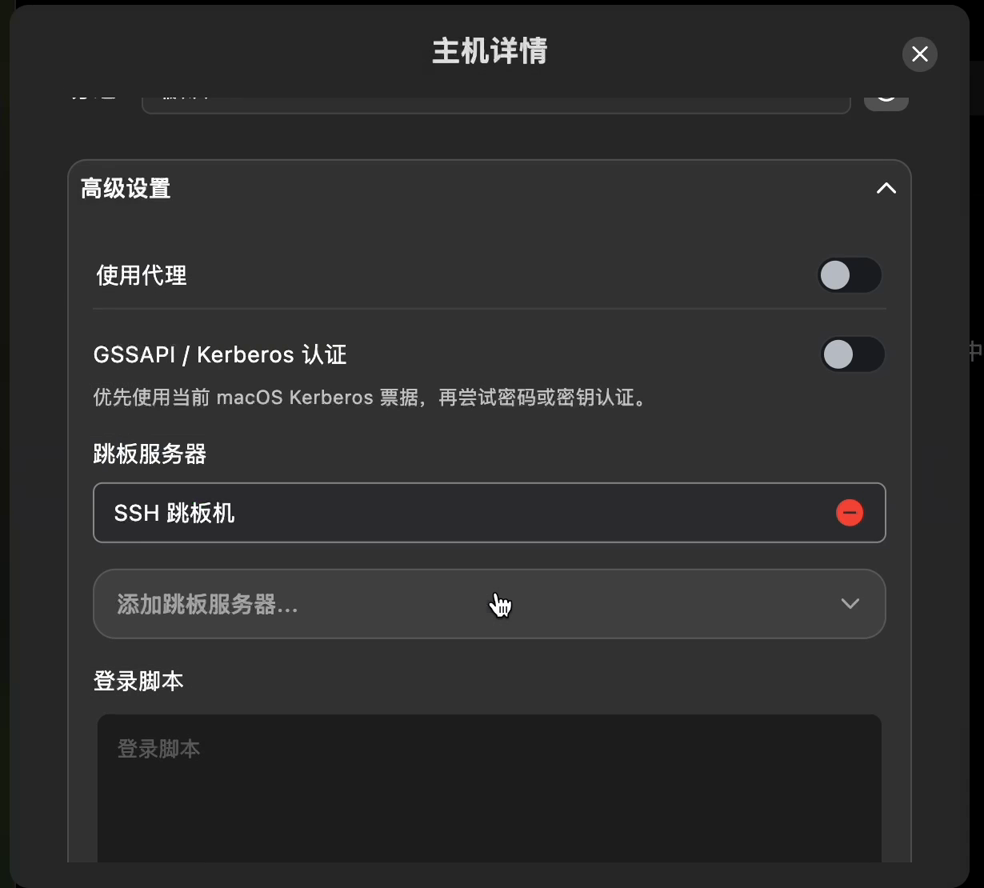
This uses the Jump Servers setting, not the separate Use Proxy switch above it.Open the saved target connection. DartShell first connects to the selected jump host, then uses it to reach the target, without requiring a manually entered second SSH command each time.
3. Check which host you reached
Once the terminal responds, run read-only checks such as:
hostname
uname -s
The first checks the host name; the second checks the operating system type. Being able to run a command and reaching the intended host are separate checks.
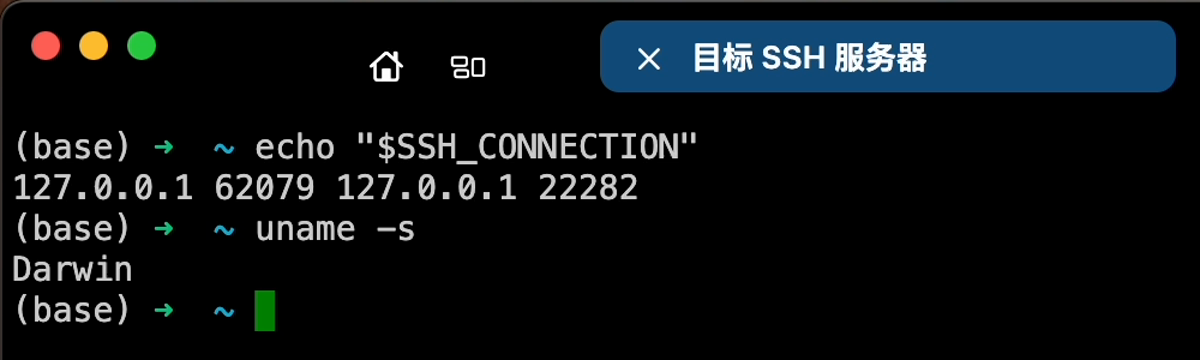
The demonstration returned Darwin from a local test SSH service. It does not establish the operating system or address of your production server; compare the results with your actual host details.
Troubleshoot one leg at a time
First, open the jump host directly and verify Mac → jump host, including its address, port, and authentication.If that works, check jump host → target server: the address must be reachable from the jump host, the SSH port must be correct, and access rules must allow the connection. Check the target's own credentials too.
Changing the target address repeatedly on your Mac will not identify which leg failed. Test the two legs separately. Once configured, use the saved target connection as your normal entry point, verify the host, and begin work.
Related workflows
DartShell
Want a smoother remote ops workflow on macOS?
DartShell brings SSH, RDP, VNC, SFTP, and serial access together in one native macOS app, so you can reduce tool switching and repetitive setup.
Download DartShell