
VNC Will Not Connect to a Mac: What to Check, In Order
The most common mistake when VNC fails is trying a different client. The client is one end of a chain that also includes the server, the network, and authentication. Check in order and you usually find it within five minutes.
Start with the table, then work through each layer.
| Symptom | Most likely cause | First move |
|---|---|---|
| Connection refused | Screen Sharing off, or the port is closed | Confirm sharing on the target, then test with nc -vz host 5900 |
| Times out after a long pause | Network unreachable, firewall dropping | Test on the same subnet first, then trace the wider path |
| Authentication failed | Login password entered instead of the VNC password | Tick the VNC password option and reset it |
| Unsupported authentication | Client and server disagree on the RFB method | Try another client, or switch to account-based access |
| Connects to a black screen | Sleeping, locked, or no logged-in user | Enable wake for network access; log in over SSH first |
| Artifacts or stutter | Colour depth or encoding mismatch, low bandwidth | Lower colour depth, use Tight or ZRLE |
| Input lags or drops keys | IME or modifier mapping | Disable local IME shortcuts, check the Cmd/Ctrl mapping |
The table above is organised by what you see. The diagram below is organised by the order to check things, which is what you want once the symptom is unclear.
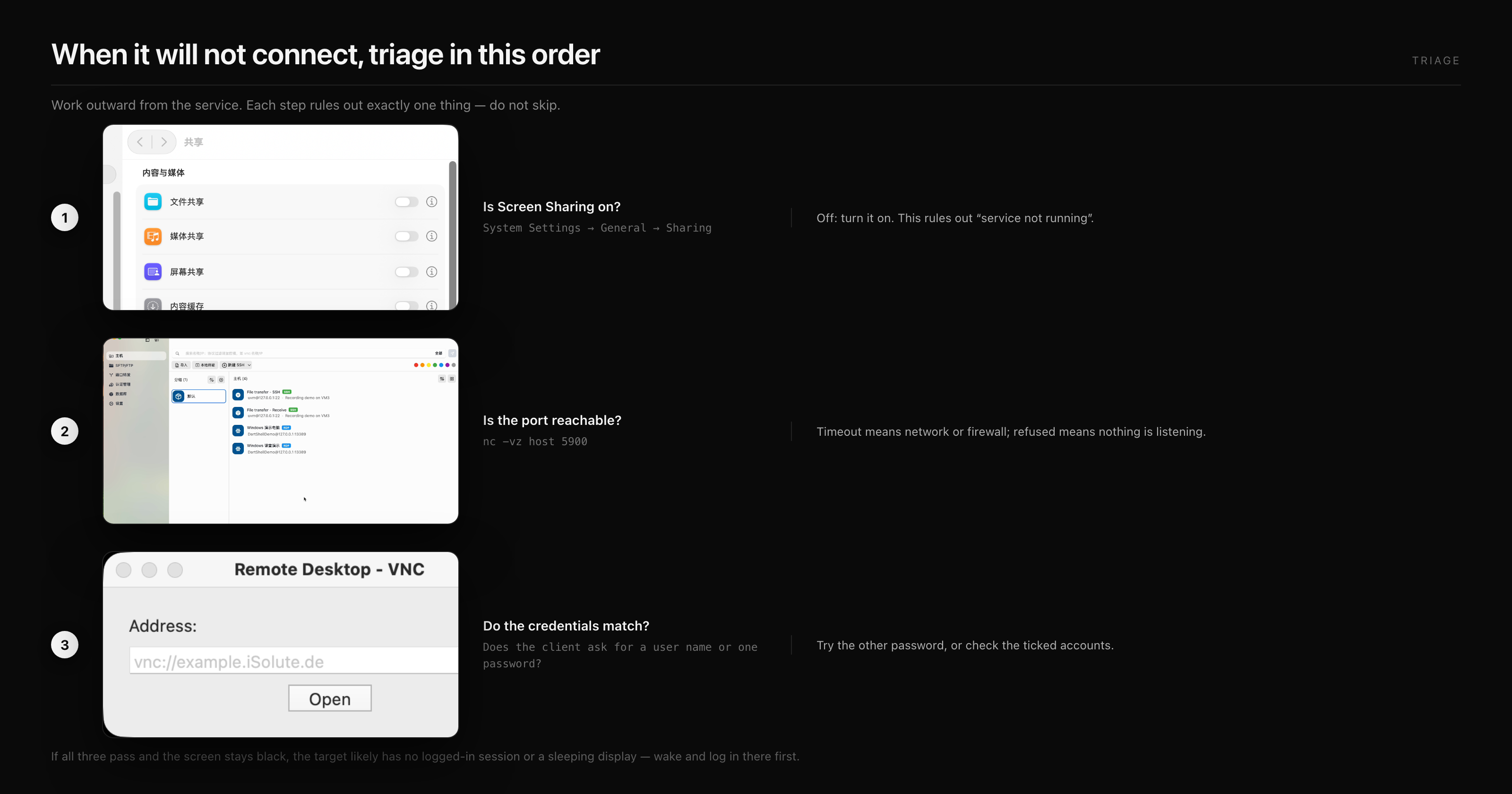
Layer 1: the server
Screen Sharing lives in System Settings → General → Sharing. Two frequent traps:
- Remote Management owns the service: Screen Sharing and Remote Management are mutually exclusive. Enabling Remote Management turns Screen Sharing off, and the option greys out
- No user is logged in: after a reboot the Mac sits at the login window. Some clients fail before they can render it
Also confirm wake for network access is enabled, or a sleeping Mac will always time out.
Layer 2: port and network
VNC listens on TCP 5900, and a second display starts at 5901. Test the port before touching the client:
# Is the port reachable?
nc -vz 192.168.1.20 5900
# Is anything listening on the target?
ssh user@192.168.1.20 "netstat -an | grep 5900"
How to read the result:
Connection refused: the host is reachable but the port is closed — back to layer 1Operation timed out: packets are dropped; check the firewall, router AP isolation, and cloud security groups- Works on the LAN but not remotely: routing or NAT, not VNC
On macOS, allow the service: System Settings → Network → Firewall → Options, and permit Screen Sharing.
Layer 3: authentication
Failures cluster in three places:
- A macOS login password was typed where the server expects the VNC password
- The account is not in the “only these users” list
- The client and server disagree on the RFB authentication method
The first is by far the most common. The VNC password is set separately in Computer Settings and is completely independent of the login password; changing one does not change the other.
The third has a recent wrinkle worth knowing: RealVNC Viewer requires an account sign-in from version 8.4, and connecting to third-party servers such as TightVNC, TigerVNC, or UltraVNC moved into paid plans. If the free viewer cannot reach a third-party server, verify the licence before reinstalling anything.
Layer 4: it connects, but the picture is wrong
| Problem | Fix |
|---|---|
| Black screen | Make sure the Mac is awake and a user is logged in; log in over SSH first if needed |
| Soft image | Turn off scaling to fit and view at 1:1; use High Performance Mac-to-Mac |
| Artifacts, colour banding | Drop to 16-bit colour, switch encoding to Tight or ZRLE |
| Stutter | Measure packet loss and latency first; VNC tolerates low bandwidth better than loss |
| Laggy or dropped input | Disable local IME hotkeys, check Cmd/Ctrl mapping and special-key sending |
High Performance mode needs an Apple silicon target on macOS 14 or later. Without it the session falls back to standard mode and the image is softer; that is expected, not a fault.
Let the logs answer
Open Console and search for screensharingd. It records connection attempts, authentication failures, and disconnects, which is faster than guessing at the client.
If the server log shows nothing at all, the connection never arrived. The problem is network or port — stop debugging authentication.
Three tunnel-specific gotchas
With ssh -L 5901:localhost:5900 user@host:
- The client connects to
localhost:5901, nothost:5900 - When the tunnel drops the client does not reconnect, which looks like a sudden freeze
- A reused ControlMaster socket can hold the local port and block a fresh forward
Frequently asked questions
The client says connection refused, but Screen Sharing is on
Confirm you enabled Screen Sharing rather than Remote Management, then check whether the firewall blocks the port. If both look right, test the port from the client with nc -vz.
The password is definitely correct and authentication still fails
Most likely a login password was used. Set the VNC password again in Computer Settings and retry. If it still fails, try another client to determine which end is at fault.
It connects to the login window and I cannot reach the desktop
No user is logged in. Enter the account credentials; if FileVault or two-factor is involved, unlock once locally or over SSH first.
Only a public IP, how do I reach an internal Mac?
Do not forward 5900. SSH to the jump host, forward with ssh -L 5901:internal-host:5900, then connect to localhost:5901. A private network such as Tailscale is the alternative.
The same settings work in another client but not this one
The problem is in the client's authentication implementation or version, not the server. Check whether it requires an account, and whether it supports the RFB version the server offers.
Keep reading
- VNC clients for Mac compared: cost and fit for four routes
- Mac VNC server setup: the three-step configuration and the two passwords
- Remote desktop looks blurry on Mac: a systematic look at image quality
- SSH local port forwarding: moving a remote port to localhost safely
DartShell
Want a smoother remote ops workflow on macOS?
DartShell brings SSH, RDP, VNC, SFTP, and serial access together in one native macOS app, so you can reduce tool switching and repetitive setup.
Download DartShell