
Mac VNC Server Setup: Connect from Windows, iPad, or Another Mac
macOS ships a VNC-compatible server, so nothing needs installing. You turn it on in Settings, keep two separate passwords straight, and you are connected in five minutes.
This page is about the Mac being controlled. If you want to connect from a Mac to something else, the comparison lives in VNC clients for Mac.
Three steps to enable Screen Sharing
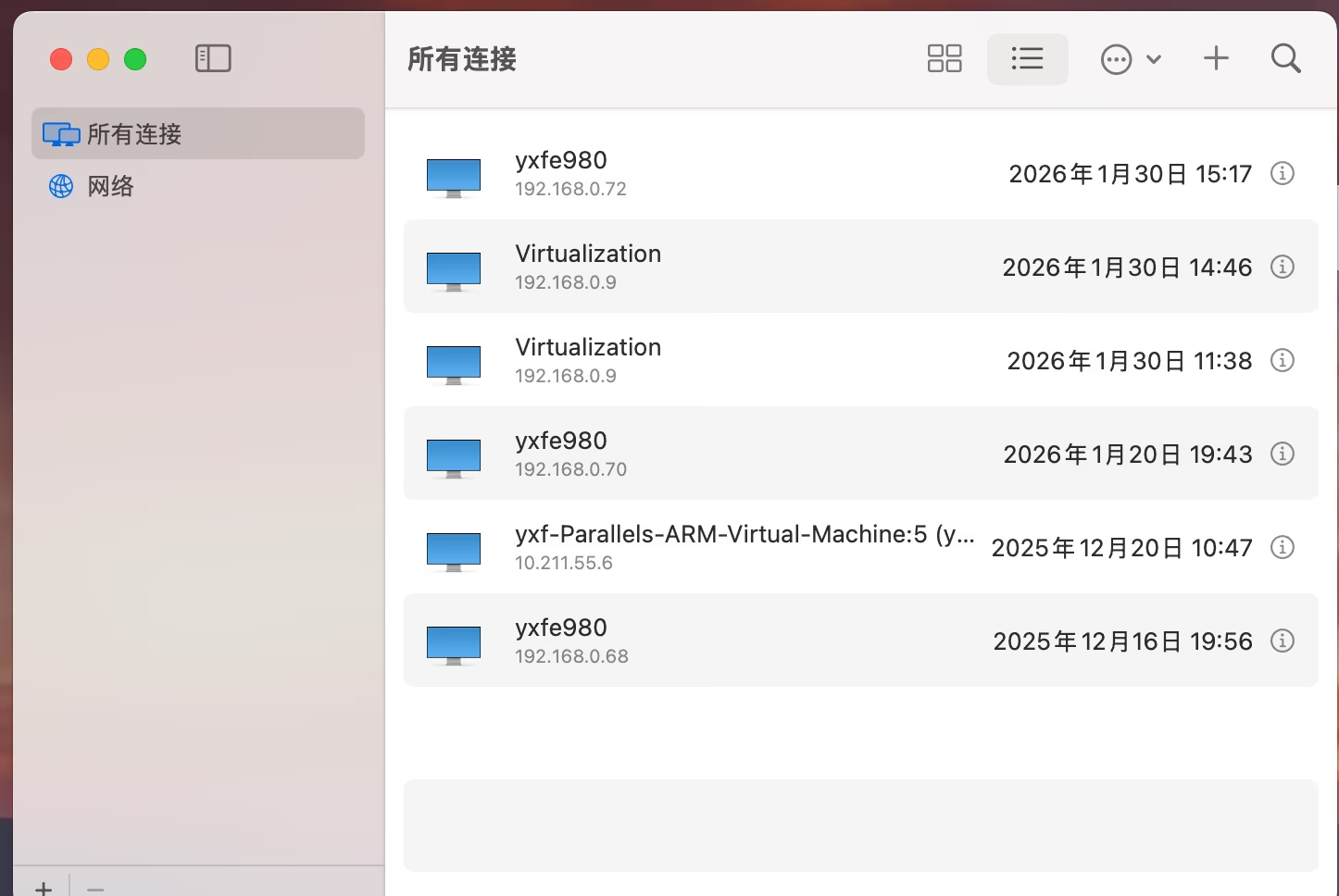
- System Settings → General → Sharing, then enable Screen Sharing
- Open the info button and set “Allow access for” to specific users only
- In Computer Settings, tick “VNC viewers may control screen with password” and set a VNC password
The third step is what non-Mac clients need. Mac-to-Mac access works without it, but Windows, iPad, and third-party viewers all require it.
Two passwords that are not the same
| Credential | Used by | Where to change it |
|---|---|---|
| macOS account password | The built-in Screen Sharing app, Apple Remote Desktop | System Settings → Users & Groups |
| VNC password | Third-party VNC clients | Sharing → Screen Sharing → Computer Settings |
Most “the password is correct but it will not connect” cases live here: the client asks the VNC service, which expects the VNC password, and the login password gets typed instead. The two are independent, and changing one does not touch the other.
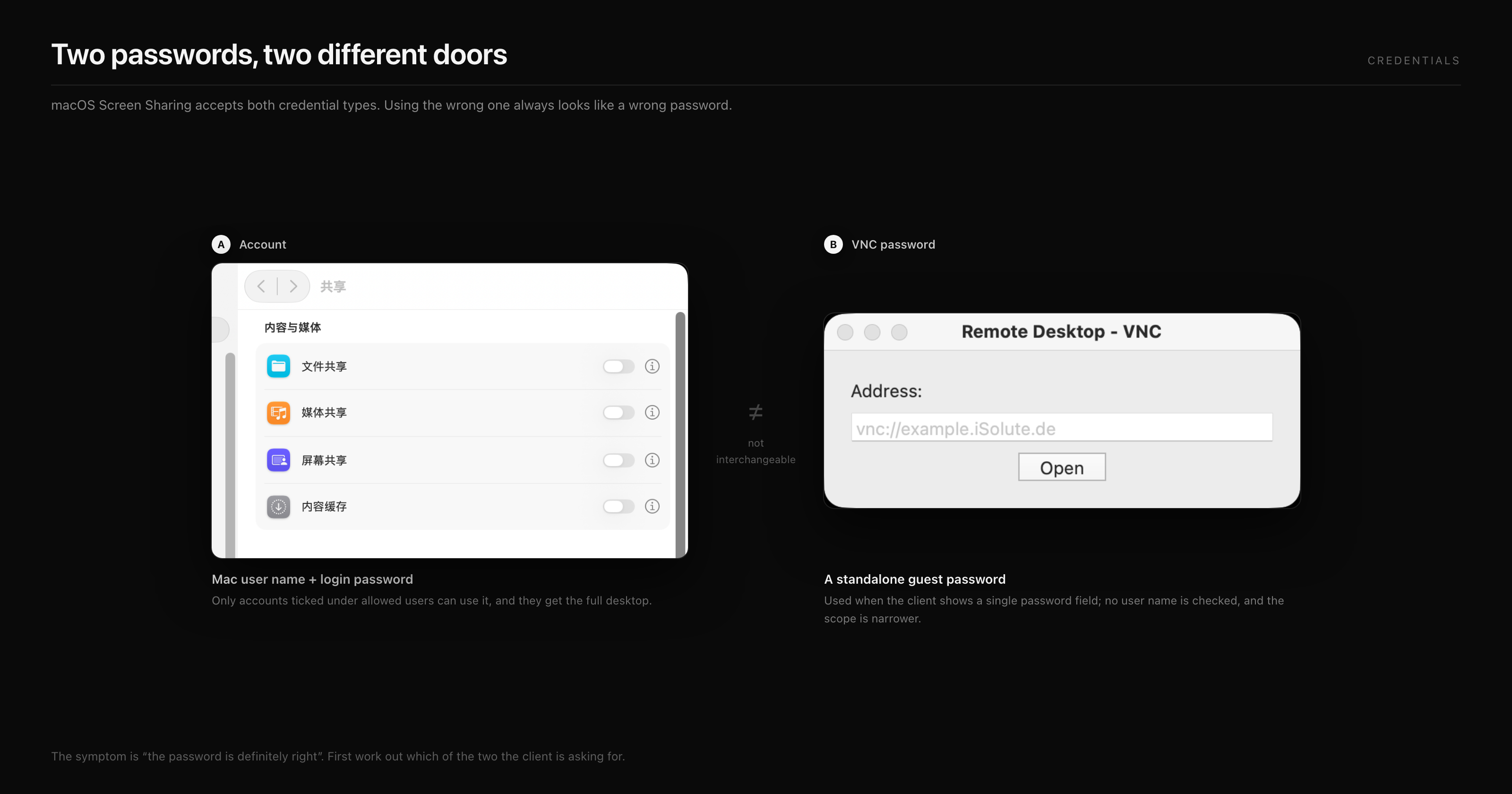
The quick test is the login form: a single password field means the VNC password, a user name plus password means the account credential.
There is also an exclusivity to remember: Screen Sharing and Remote Management cannot both be on. Enabling Remote Management switches Screen Sharing off, and the option greys out.
Connecting from Windows
Windows has no built-in VNC client, so install one:
- RealVNC Viewer: free for personal, non-commercial use; account sign-in since 8.4
- TightVNC Viewer: fully free, dated interface, does the job
- UltraVNC: file transfer and chat, more configuration
Enter the address as 192.168.1.20:5900. A second display on the same Mac starts at 5901 and increments.
Connecting from an iPad or iPhone
Apple does not ship a native VNC client, so this needs a third-party app:
- Screens: the most complete option inside the Apple ecosystem, with trackpad gestures and Apple Pencil support
- Jump Desktop: RDP and VNC in one client, with its own relay
- RealVNC Viewer: the free route, fine for occasional access
One practical note: an external keyboard and mouse change long sessions a lot. Touch alone suits quick checks, not hours of work.
Connecting from another Mac
The fastest route is the address bar or Spotlight:
vnc://192.168.1.20
The system opens it in the Screen Sharing app. When both ends are Macs, and the target is Apple silicon on macOS 14 or later, the connection offers a High Performance mode that uses hardware encoding for better frame rates and lower latency.
Ports, firewall, and wake settings
- VNC uses TCP 5900; the firewall has to allow the Screen Sharing service, which is usually already permitted
- Closing a laptop lid drops the connection; enable wake for network access in Battery or Energy settings
- On a desktop Mac, set the computer never to sleep, or you will connect to a black screen
- If you see only a login window, no user is logged in; entering the password brings up the desktop
Remote access without exposing port 5900
VNC authentication is only as strong as the implementation, and many clients check a short password while leaving keystrokes unencrypted. Forwarding 5900 to the internet hands the desktop to scanners. Two safer options:
- Private network: Tailscale or a company VPN on both ends, then use the internal address
- SSH tunnel:
ssh -L 5901:localhost:5900 user@mac, then point the client atlocalhost:5901, with SSH carrying the encryption
Crossing the internet also means counting traffic. Same 1080p30 session, at 8 hours per working day and 22 days a month:
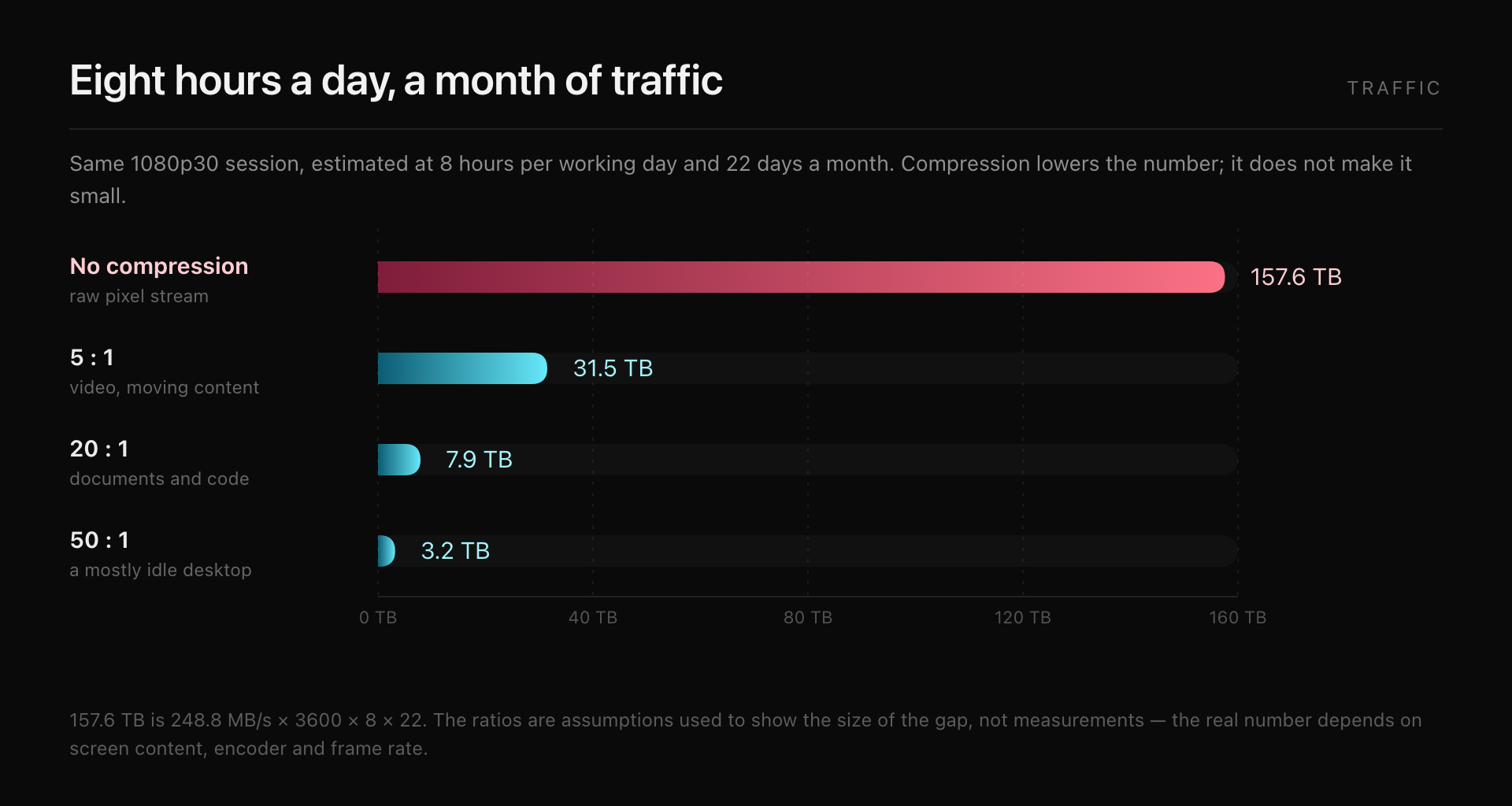
Uncompressed that is 157 TB a month; even at 50:1 it stays above 3 TB. This is why resolution and frame rate come down on a mobile link — not because the client is lazy, but because the link genuinely cannot carry more.
When it still fails, work through the VNC troubleshooting order instead of cycling through clients.
Frequently asked questions
Screen Sharing is on but the VNC client still fails
Check that “VNC viewers may control screen with password” is enabled and a VNC password exists. With Screen Sharing alone and no VNC password, third-party clients have nothing to authenticate against.
The Screen Sharing option is greyed out
Remote Management owns the service. Turn Remote Management off and Screen Sharing becomes available again; macOS does not allow both.
Do I need to allow anyone to request control?
No, and it is better not to. Restrict access to specific accounts. “Anyone may request permission” is for temporary support sessions only.
The session is slow. Can it be improved?
On a LAN, use High Performance mode when both ends support it (Apple silicon target, macOS 14 or later). Across networks, check bandwidth and latency first — VNC is sensitive to packet loss, and lowering colour depth usually helps more than swapping clients.
Can several people connect to the same Mac at once?
Yes, but everyone shares one desktop, so input conflicts. When each person needs a separate desktop, VNC is the wrong tool; use remote desktop sessions or a virtual machine.
Keep reading
- VNC clients for Mac compared: built-in Screen Sharing, RealVNC, Screens, and integrated tools
- When VNC will not connect: black screen, rejected password, blocked port
- Remote desktop looks blurry on Mac: why scaling and sharpness go wrong
- SSH local port forwarding: the full tunnel walkthrough
DartShell
Want a smoother remote ops workflow on macOS?
DartShell brings SSH, RDP, VNC, SFTP, and serial access together in one native macOS app, so you can reduce tool switching and repetitive setup.
Download DartShell