
chmod Command: Fix Linux Script Permission Denied
The chmod command helped me fix a Linux script that returned Permission denied because its owner lacked execute permission. The file was right there in the directory, but ./script.sh would not run. Instead of adding sudo or setting everything to 777, I checked which bit was missing.
Find the missing permission
I connected from my Mac to a Linux test machine using DartShell, a remote connection tool for macOS. To get it, open the Mac App Store and search for DartShell.
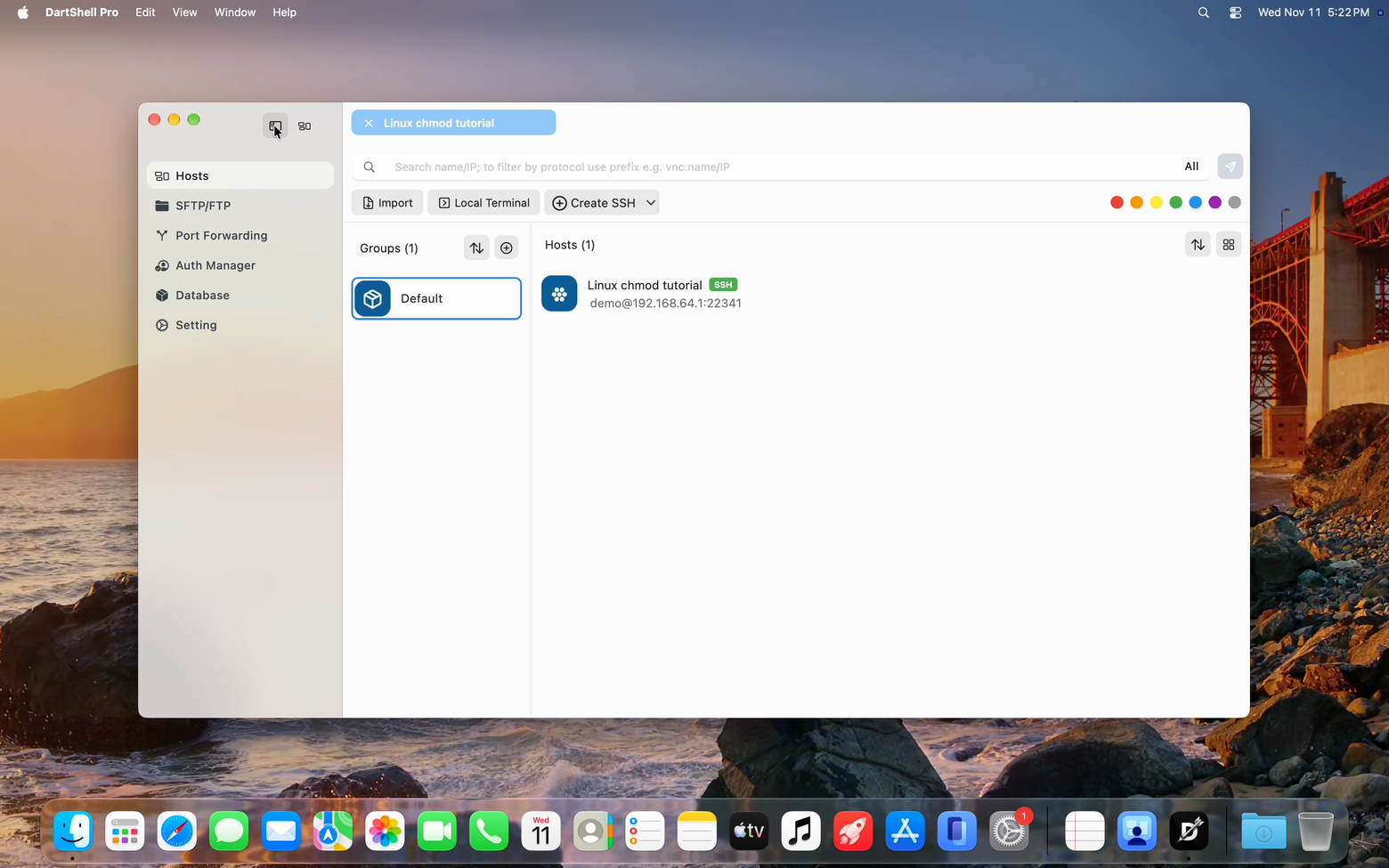
I ran uname -s and whoami to check that the remote system was Linux and the account was demo. Then I entered the script directory, /home/demo/chmod-demo, and tried:
./script.sh
ls -l script.sh
The first command failed. The second showed -rw-r--r--, and the file owner was also demo.
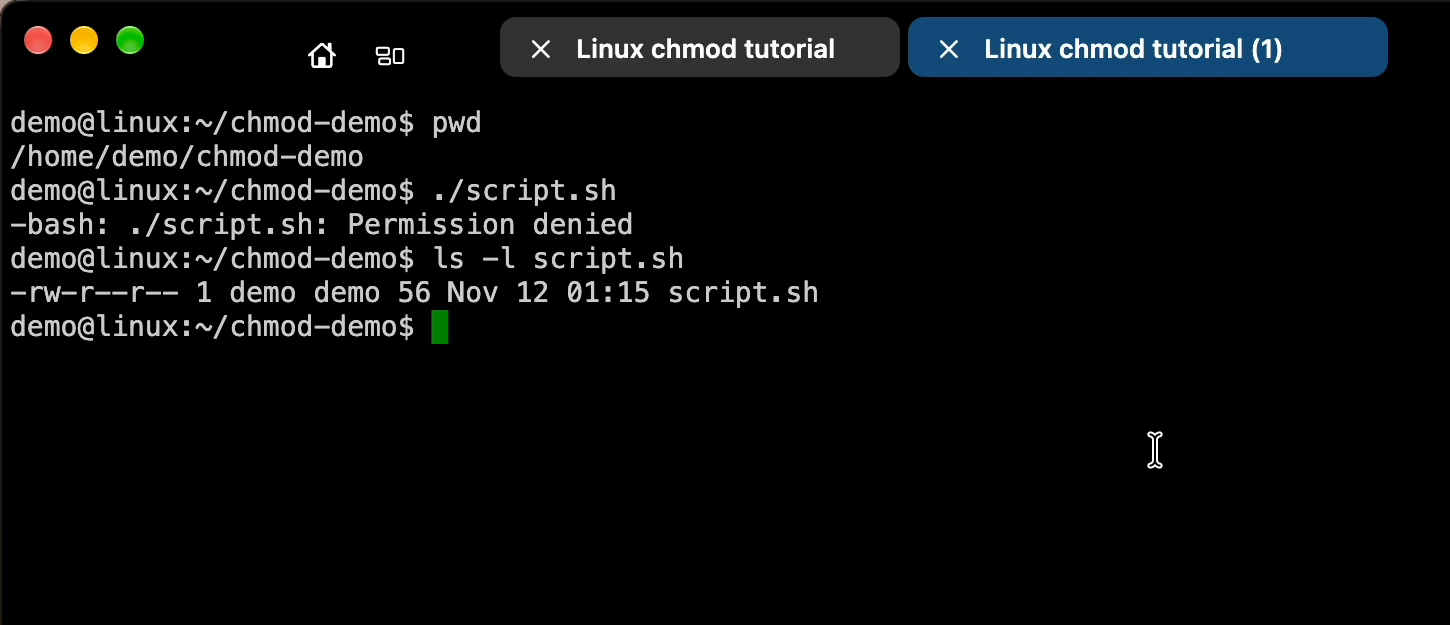
There is no need to memorize the whole string. The first - means a regular file. The next three groups belong to the owner, group, and other users. r means read, w means write, and x means execute. A dash means that bit is not set.
The first group, rw-, explained this case: I could read and edit the file, but could not execute it directly.
Add x, then run it again
I only wanted to let the file owner execute it:
chmod u+x script.sh
ls -l script.sh
./script.sh
u selects the owner, + adds a permission, and x means execute. I was logged in as the file owner, so I did not need sudo. The other permission bits stayed intact.
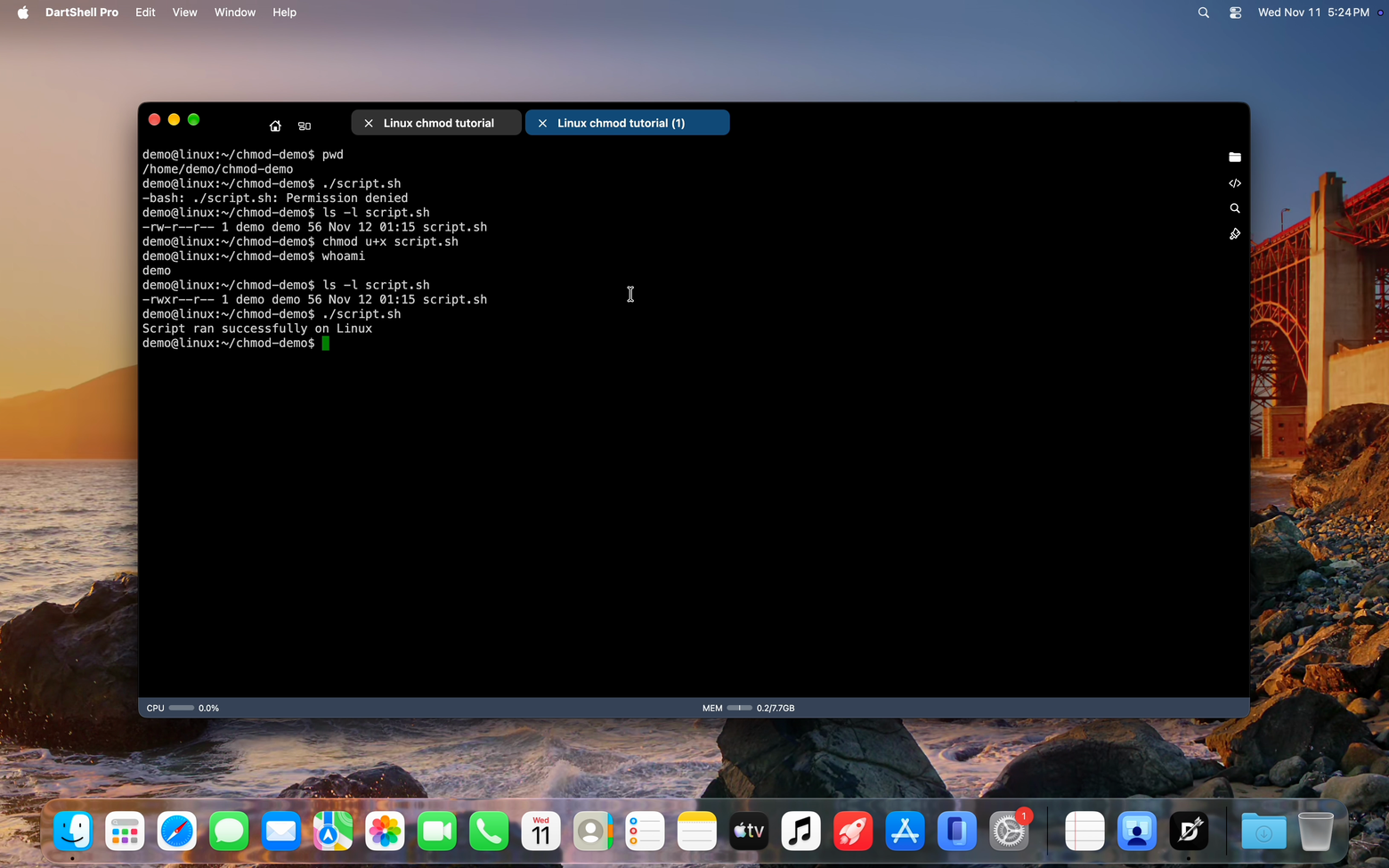
The permissions changed from -rw-r--r-- to -rwxr--r--. The script also returned Script ran successfully on Linux. I check both results: the permissions changed as intended, and the script actually ran.
What about 644, 744, and 755?
Numeric modes describe those same three groups. Within each group, read is 4, write is 2, and execute is 1. Add the values:
- 644: the owner can read and write; the group and others can only read.
- 744: the owner also gets execute permission.
- 755: the group and others can execute it too.
I set the test file to 744 and checked both representations:
chmod 744 script.sh
stat -c '%a %A %n' script.sh
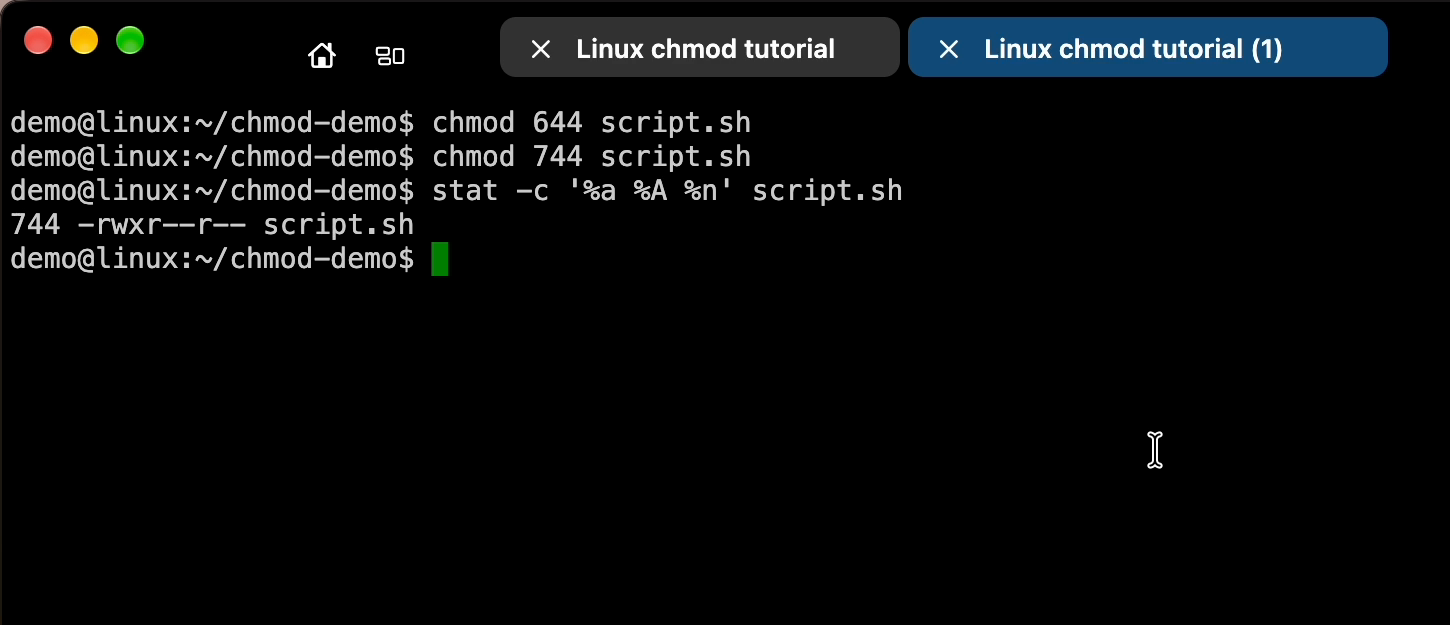
There is an easy distinction to miss: u+x adds one bit to the existing permissions, while 744 directly sets these three groups of ordinary permissions. They give the same result here because the file started at 644.
For other combinations, use the chmod calculator to convert read, write, and execute permissions into a numeric mode and a ready-to-copy command.
I would not use 777 just to save a step. It also grants write access to the group and other users. Running my own script does not call for that extra access.
Quote filenames with spaces
I also tried a file called report job.sh:
chmod u+x "report job.sh"
./"report job.sh"
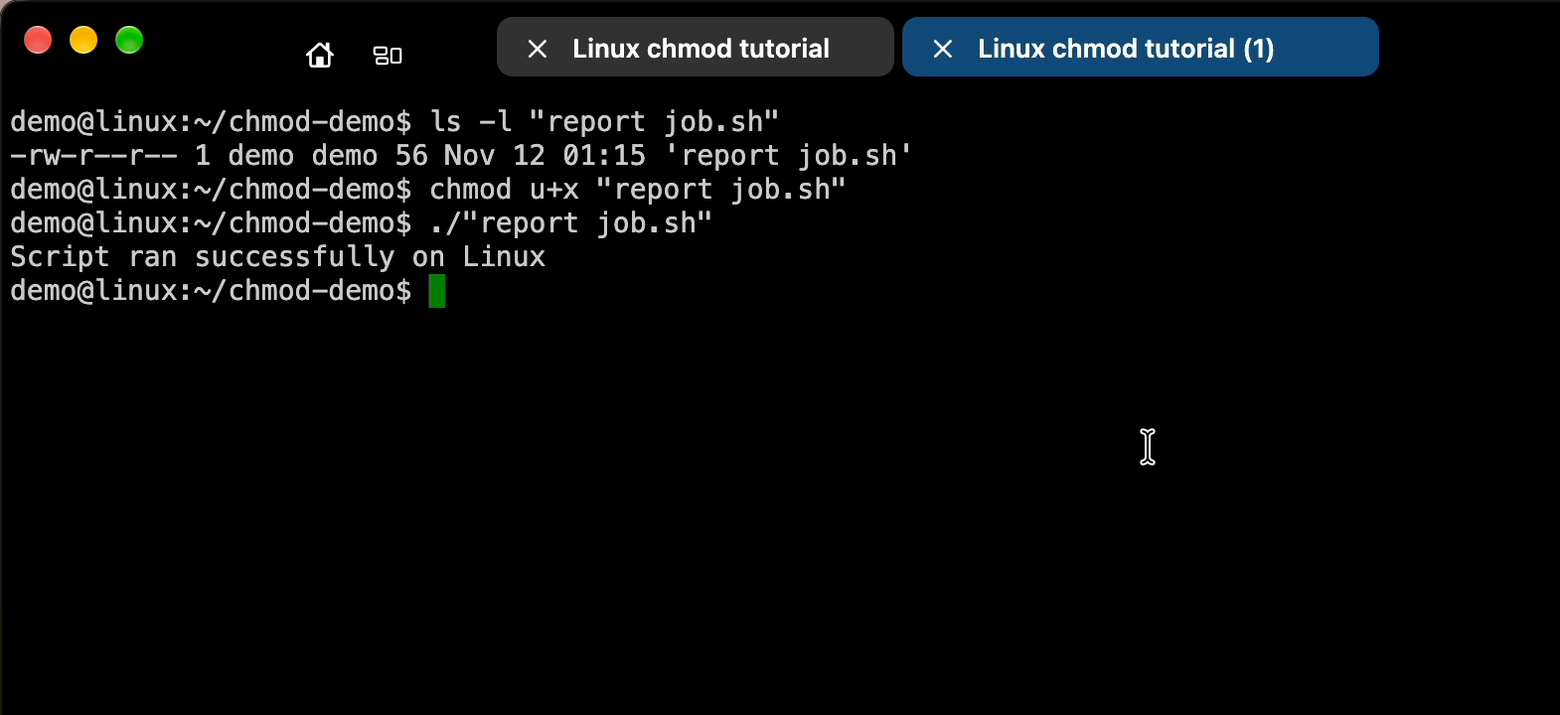
The quotes keep the filename together as one argument.
If a script already has x and still will not run, follow the actual error: check directory permissions, a noexec mount, or the script's interpreter. Adding an execute bit fixes this particular problem, not every permission error.
Related reading
More on the same problem, in the order most people need it.
- SecureCRT for Mac: Is There a Better Alternative in 2026?
What you actually lose by leaving SecureCRT, how many apps four everyday jobs take, and how long a migration takes to…
- Import SSH Server Connections on Mac: A DartShell SSH Config Guide
If you already have a collection of SSH connections, changing clients should not require entering every address…
- Bitvise SSH Client for Mac
Bitvise SSH Client is a common remote connection tool for Windows.
DartShell
Want a smoother remote ops workflow on macOS?
DartShell brings SSH, RDP, VNC, SFTP, and serial access together in one native macOS app, so you can reduce tool switching and repetitive setup.
Download DartShell