
How to Control a Linux Desktop from Mac with VNC
SSH is enough for many command-line tasks. If you need to click through a Linux desktop, VNC gives you access to its graphical session. In this test, I started the connection in DartShell, then used macOS Screen Sharing for authentication and remote interaction.
Prepare the Linux session
The Linux machine needs a running VNC server and a usable desktop session. Your Mac must also be able to reach the service address and port.
My test used Ubuntu, TigerVNC and XFCE in an isolated container. A temporary forward exposed the service to the Mac virtual machine used as the client. The address 192.168.64.1 in the screenshots belongs to that test setup. Replace it with the address your Mac can actually reach.
Create the VNC connection in DartShell
On the Hosts page, open the dropdown beside New SSH and choose New VNC. The Chinese labels shown are 新建 SSH and 新建 VNC.
Enter the host address and VNC Port. The form defaults to 5900. This server used 5901, so I changed it to match the server configuration. You can also give the connection a recognizable name.
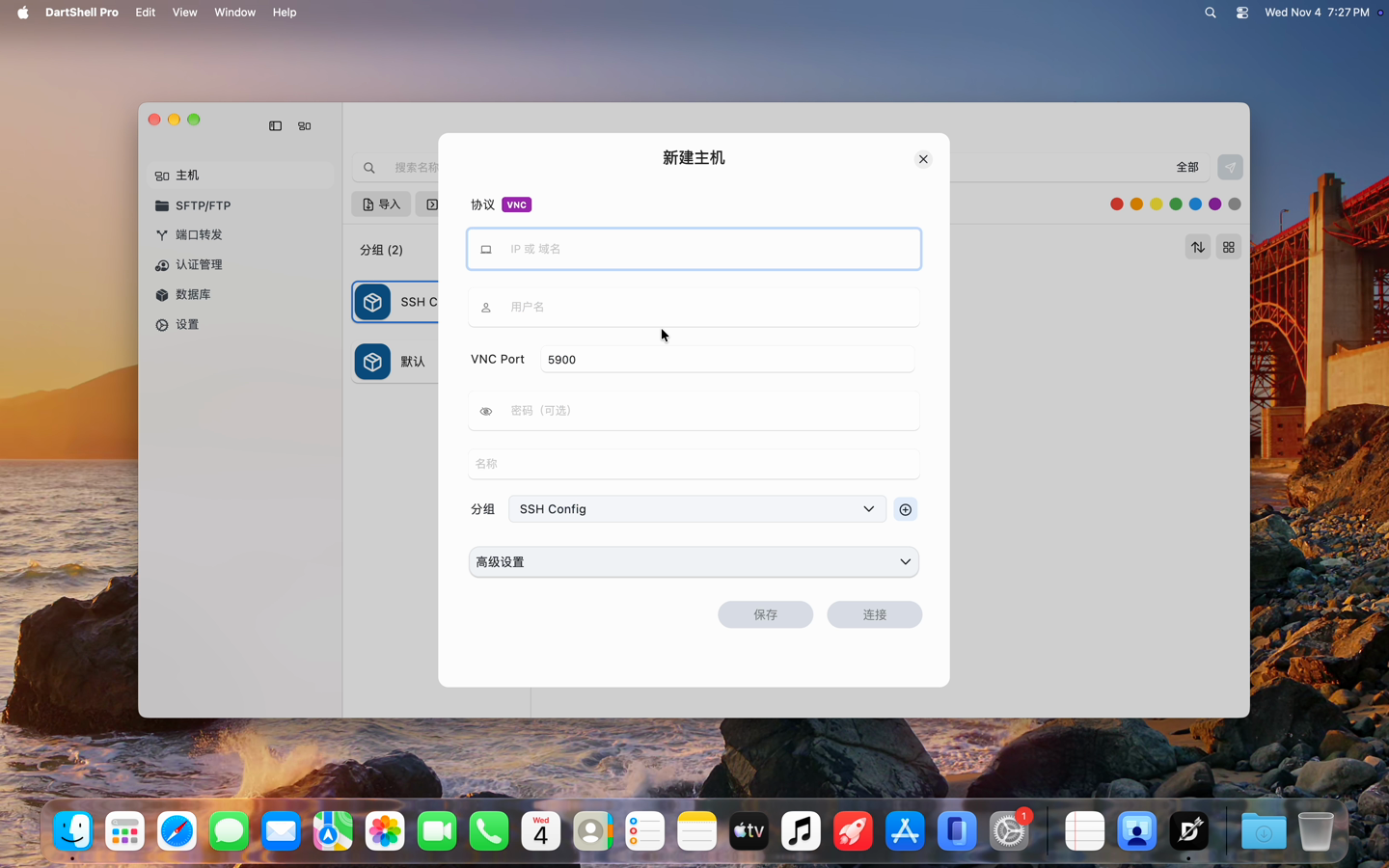
Click Connect. In this build and test flow, macOS Screen Sharing opened a password prompt. Enter the password configured for the VNC service. That password may differ from the Linux account password, and the authentication method must match the server.
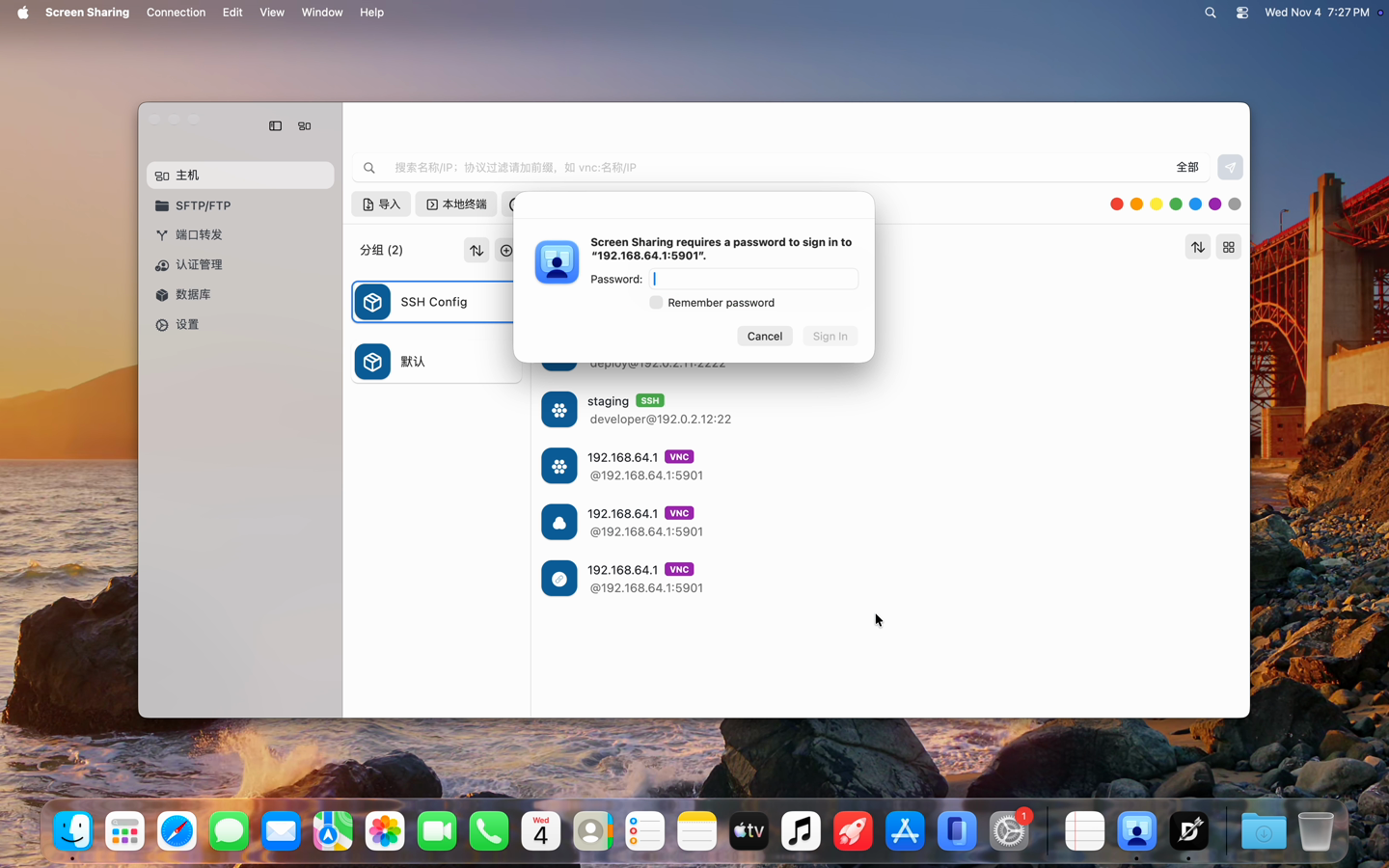
Check interaction after the desktop opens
Once the XFCE desktop appeared, I clicked its terminal launcher, entered uname -s and pressed Return. It returned Linux.
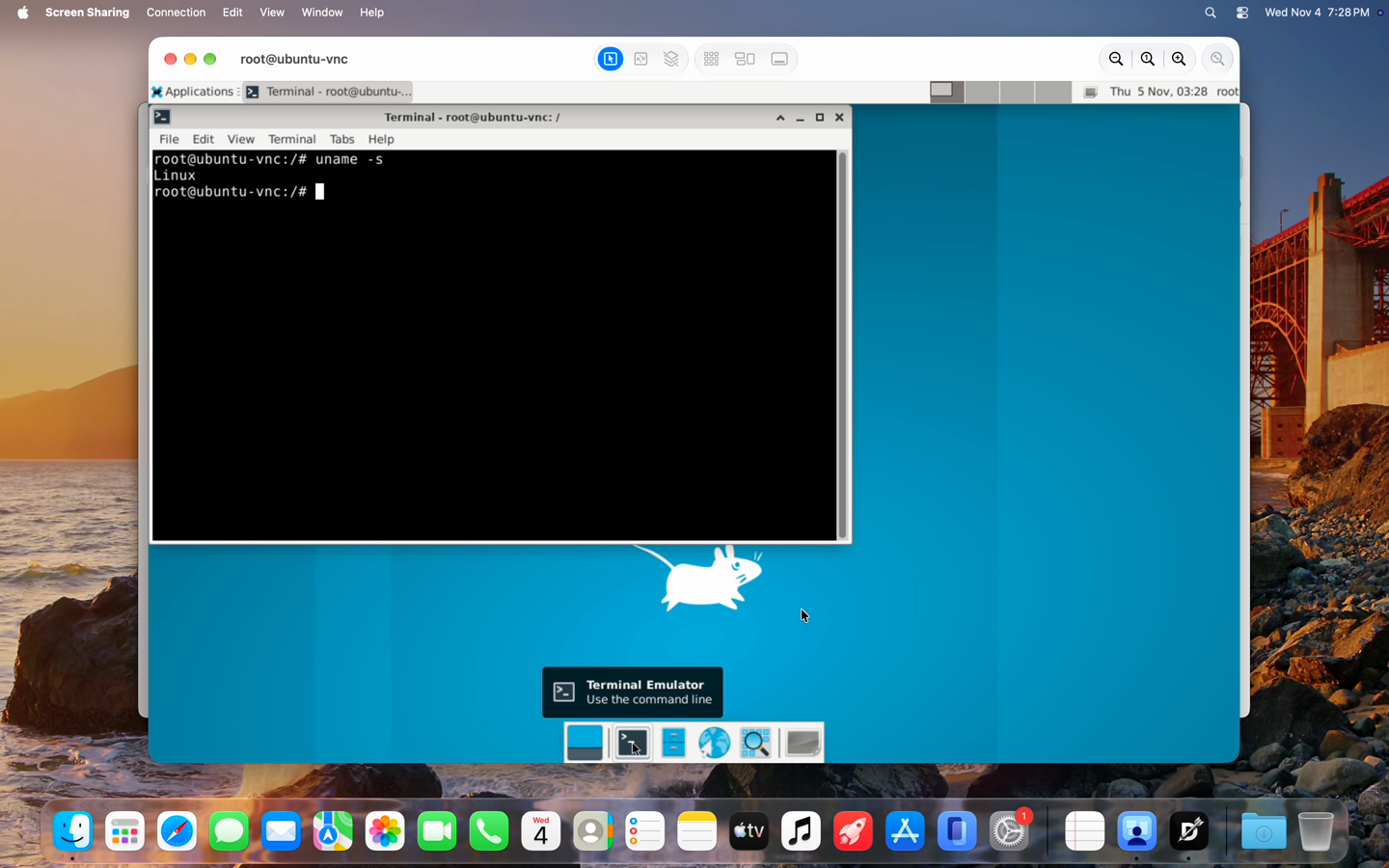
A visible desktop, a terminal that opens when clicked, and a command that returns output are separate checks. A desktop image alone does not confirm that keyboard and mouse input work.
If the connection fails
Before a password prompt appears, check that the VNC server is running, the address and port are correct, and the network or firewall allows the connection.
If the password prompt appears but login fails, check the VNC password and authentication method. If the desktop opens but ignores input, inspect the session and whether the client is in view-only mode.
Which machine do you connect to with VNC? Share your setup in the comments and follow for more Mac tips.
For client selection, see the Mac VNC client guide. For managing graphical and terminal connections together, see remote desktop management on Mac.
DartShell
Want a smoother remote ops workflow on macOS?
DartShell brings SSH, RDP, VNC, SFTP, and serial access together in one native macOS app, so you can reduce tool switching and repetitive setup.
Download DartShell