
Connect to MySQL over SSH on Mac Without Exposing Its Database Port
If MySQL accepts connections only from its own server, entering the server's public IP and port 3306 on your Mac will not reach it. You do not necessarily need to expose that database port to query the data.If you can log in to the server over SSH, create a local port forwarding rule in DartShell, then point your database connection to the local end of the tunnel.
This example runs SSH and MySQL on the same server. MySQL listens on the server's 127.0.0.1:3306; the Mac uses local port 13306. The example database is demo_shop, with a query account named demo_reader. Substitute your own settings.
Keep the three ports separate
| Purpose | Example setting | Where it belongs |
|---|---|---|
| SSH service | The port in your working SSH connection | SSH host entry |
| Local entry point on your Mac | 13306 |
Forwarding rule and database connection |
| MySQL service on the server | 3306 |
Forwarding rule's remote port |
The SSH port is not the MySQL port. First check that SSH works, MySQL is running, and the database account can read the required tables. Port 13306 is simply an available local port chosen for this example.
1. Create the local forwarding rule
Open Port Forwarding (端口转发) in DartShell and choose Add Rule (添加规则). Name it MySQL SSH Tunnel, choose Local (本地), set the local port to 13306, and select the SSH host that can log in to the server.
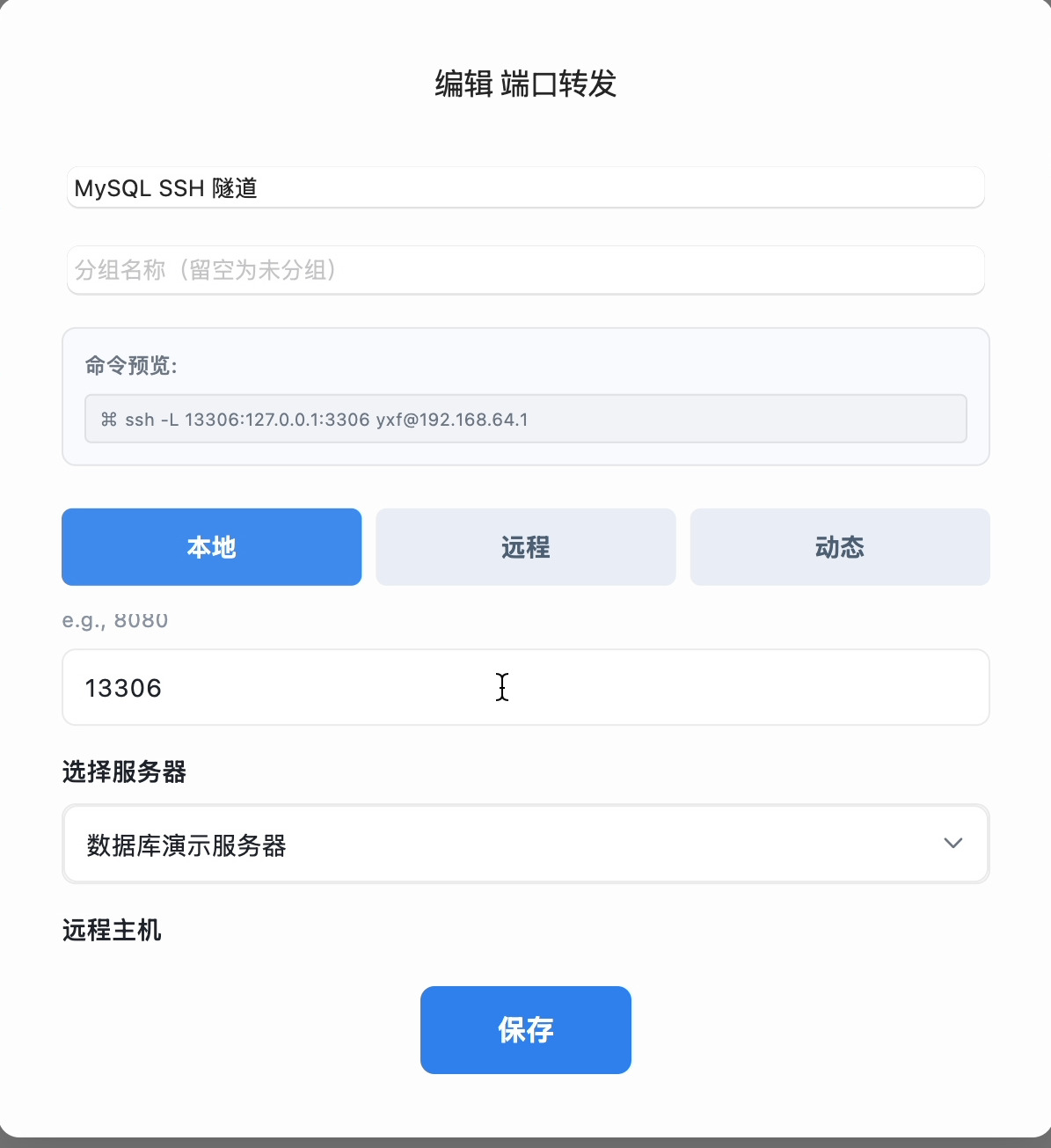
The screenshots use the Chinese interface. Local port means the entry point on your Mac; select your actual saved SSH connection.
2. Enter the MySQL destination and start the rule
Set:
- Remote host:
127.0.0.1 - Remote port:
3306
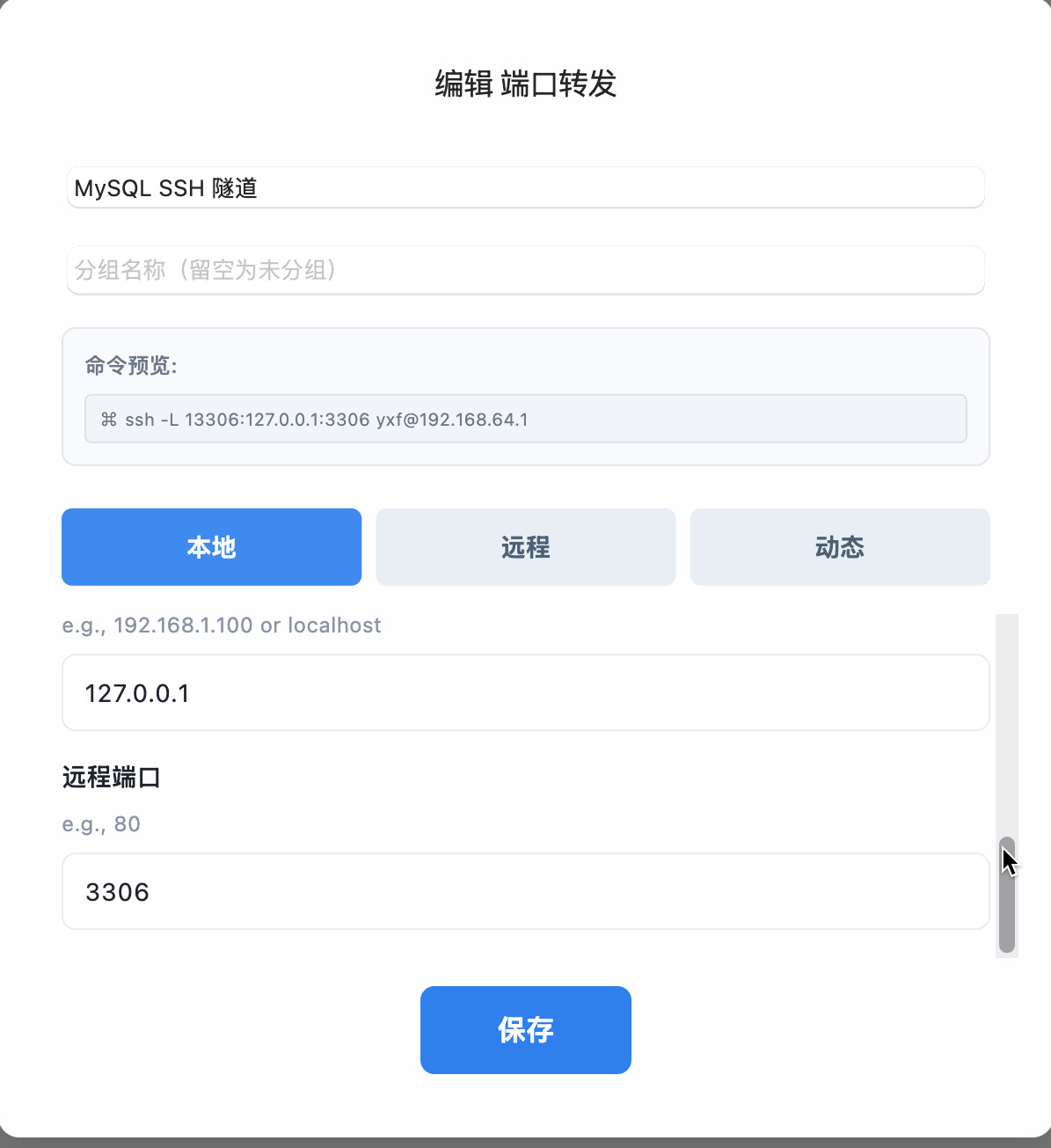
Here, 127.0.0.1 refers to the SSH server because MySQL runs on that same machine. Save the rule and start it from the list before setting up the database connection.
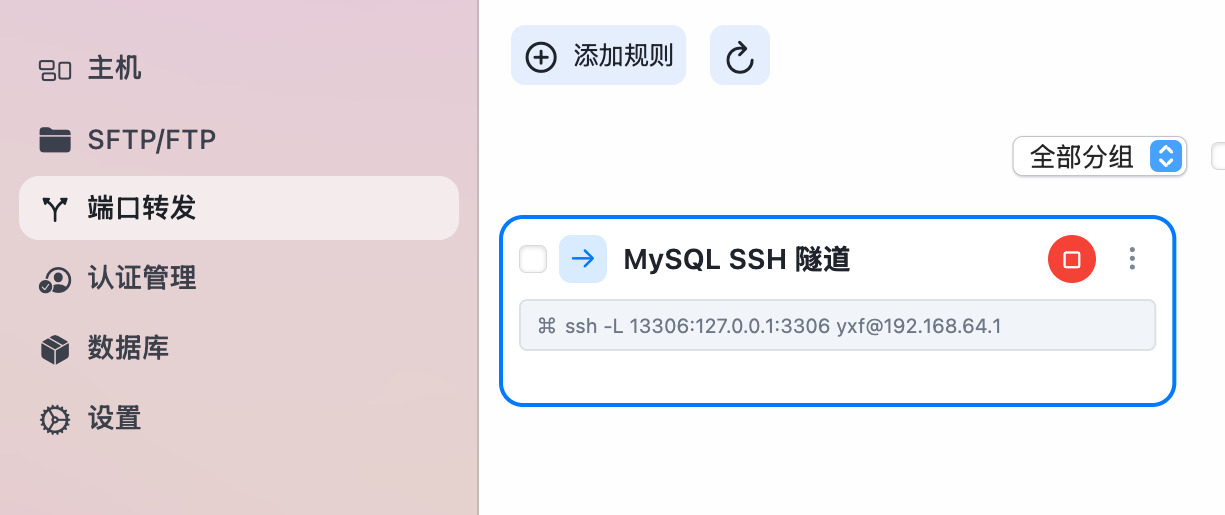
3. Point the database connection to your Mac
Open Database (数据库) in DartShell and create a MySQL connection:
- Connection name: Remote MySQL
- Host:
127.0.0.1 - Port:
13306 - Username:
demo_reader - Password: The MySQL account's password
- Database:
demo_shop
This is your Mac's 127.0.0.1:13306, not the server's public IP or MySQL's remote port 3306. MySQL credentials and SSH credentials are separate.
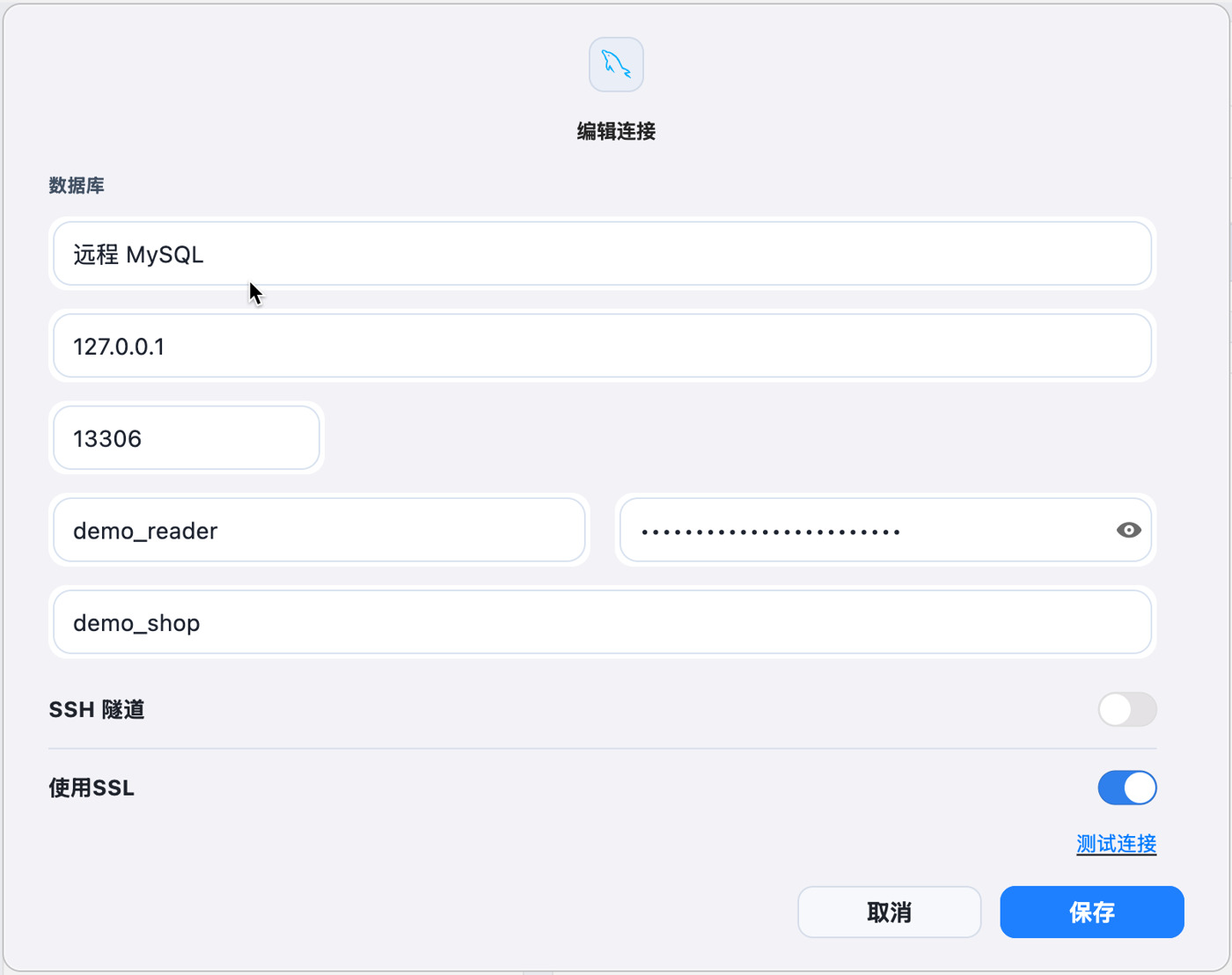
Keep the database connection's SSH Tunnel switch off in this setup: the running forwarding rule already provides that tunnel. This does not mean the connection bypasses SSH. Use SSL remains a separate MySQL setting; it is enabled in this example. Check authentication and SSL against your actual MySQL configuration.
You can use Test Connection before saving. The final verification here is to open a table and read its data.
4. Open a table to verify access
Connect, expand demo_shop → Tables → orders, and open the table. This isolated example returned three synthetic order rows.
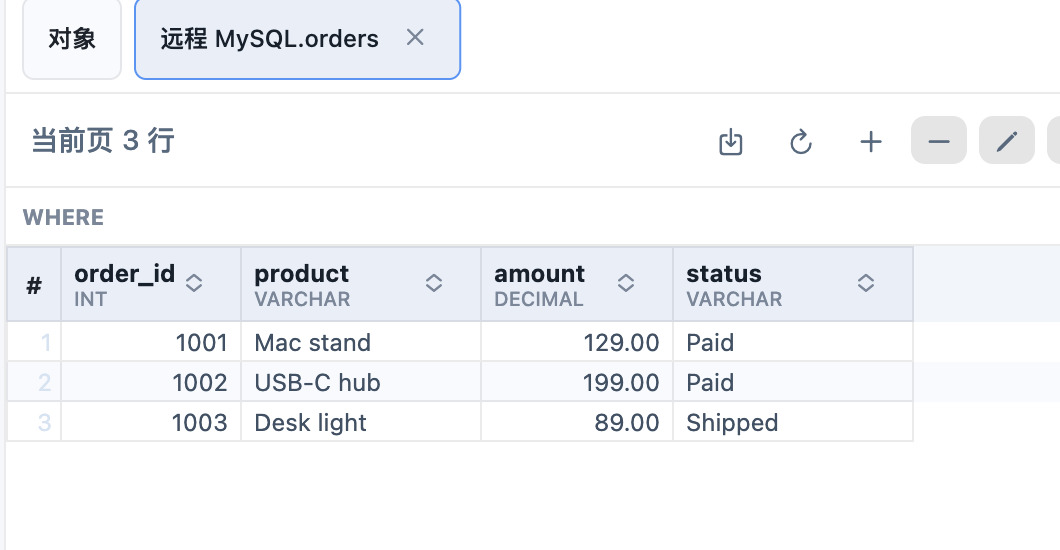
The connection path is:
Database connection on Mac → local 127.0.0.1:13306 → SSH tunnel → server 127.0.0.1:3306
MySQL remained bound to the server's loopback address. Direct access to its public IP on port 3306 was unavailable; access through the tunnel returned table data.
If it does not connect
Check the running tunnel first. Saving a rule does not start it; also verify that the selected SSH host can connect.Next, check both ends. The forwarding rule targets remote port 3306, while the database connection uses local port 13306. If you change the local port, update the database connection too.
Finally, check MySQL credentials, database permissions, and SSL. An authentication or encryption error needs a database-level fix, not repeated changes to the forwarding port.Stop the forwarding rule when finished. To use this path again, start the rule before connecting to MySQL.
Related workflows
DartShell
Want a smoother remote ops workflow on macOS?
DartShell brings SSH, RDP, VNC, SFTP, and serial access together in one native macOS app, so you can reduce tool switching and repetitive setup.
Download DartShell