
Share SSH Connection Settings Across Macs with DartShell and iCloud Drive
Moving to another Mac does not have to mean entering every server address, port, and group again. You can put DartShell's configuration database in iCloud Drive and select the same configuration folder on each Mac.This shares saved host entries and other database content. DartShell reads the configuration; iCloud Drive synchronizes the files. Moving the files and selecting the folder are separate steps.
Before you start
- Sign in to the same Apple Account on both Macs and enable iCloud Drive.
- Create a dedicated folder in iCloud Drive, such as
DartShell. - Decide which Mac has the configuration you want to keep. Back up any separate configuration on the other Mac first.
Apple's iCloud Drive setup instructions explain the system setting. The folder name below is an example; both Macs need to select the same cloud folder.
1. Back up and copy the configuration
Open DartShell Settings and find Configuration Directory (配置目录). Note its current path. This is different from the download or log directory.
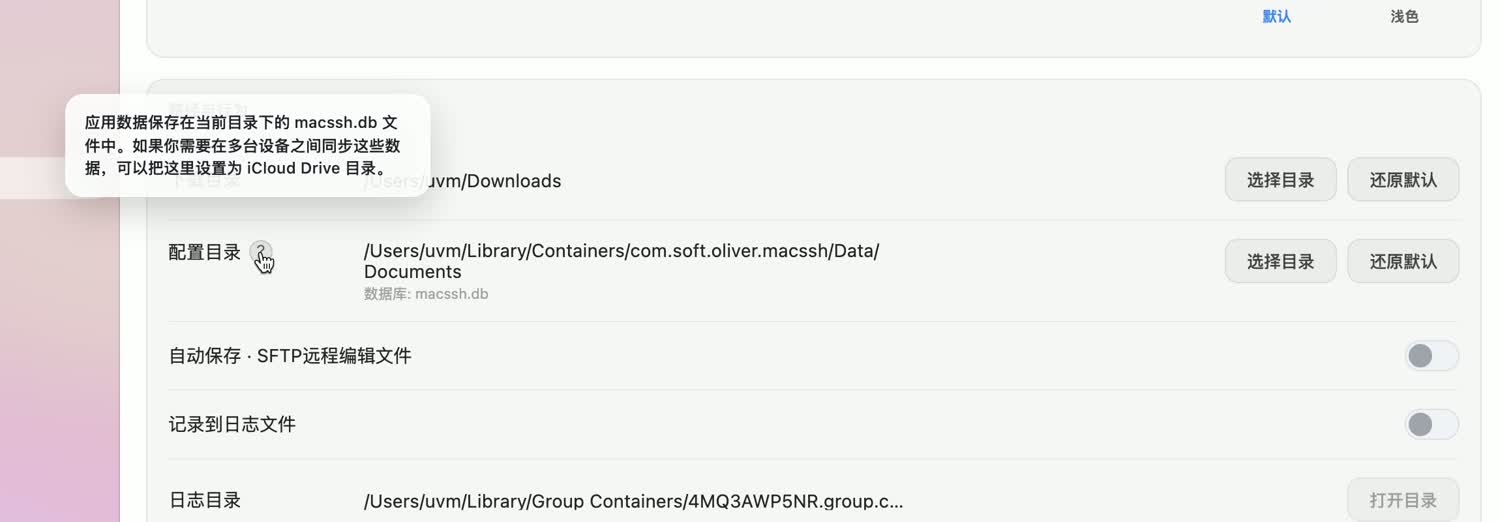
Quit DartShell completely, then open that directory in Finder. Press Command + Shift + G if you want to paste the path directly.Back up the original configuration directory somewhere outside iCloud Drive. While DartShell remains closed, copy its macssh.db database and associated files from the same directory into iCloud Drive/DartShell.
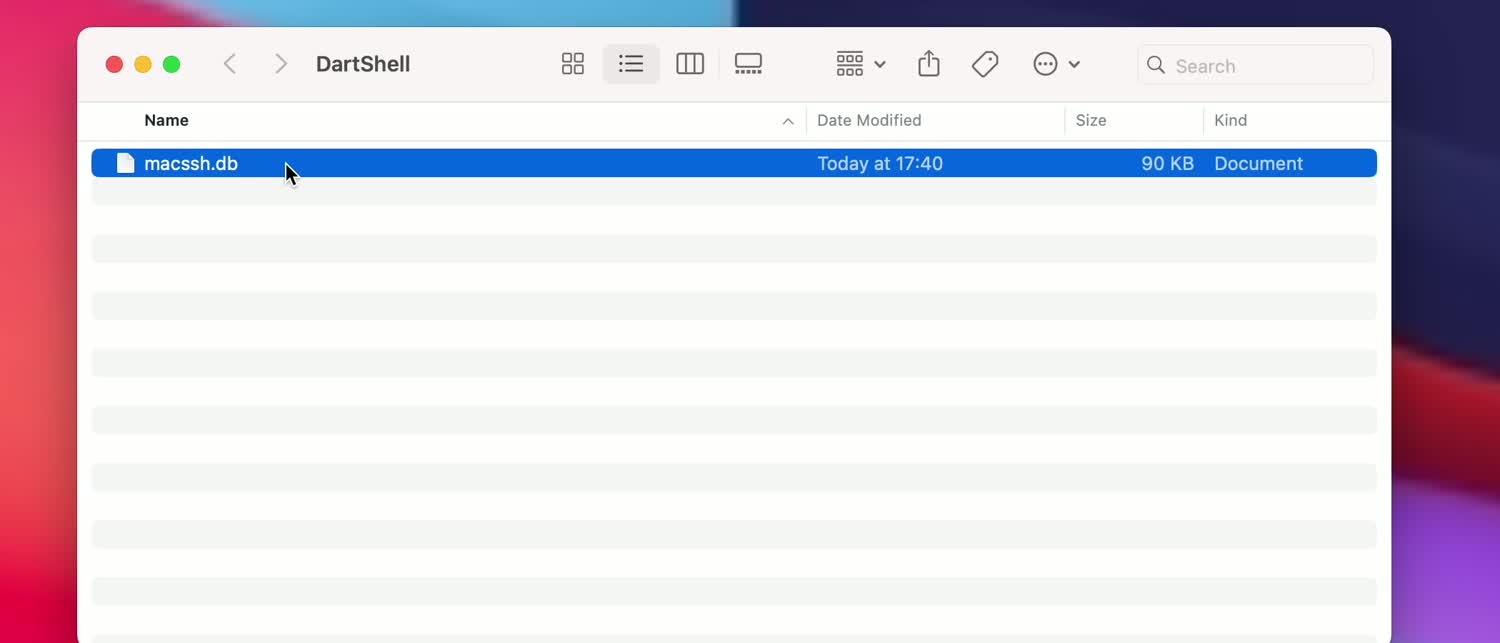
Copy the existing files before switching folders. Selecting an empty folder does not migrate your host entries. Do not overwrite the configuration you want to keep with an empty database from another Mac.
2. Select the cloud configuration folder
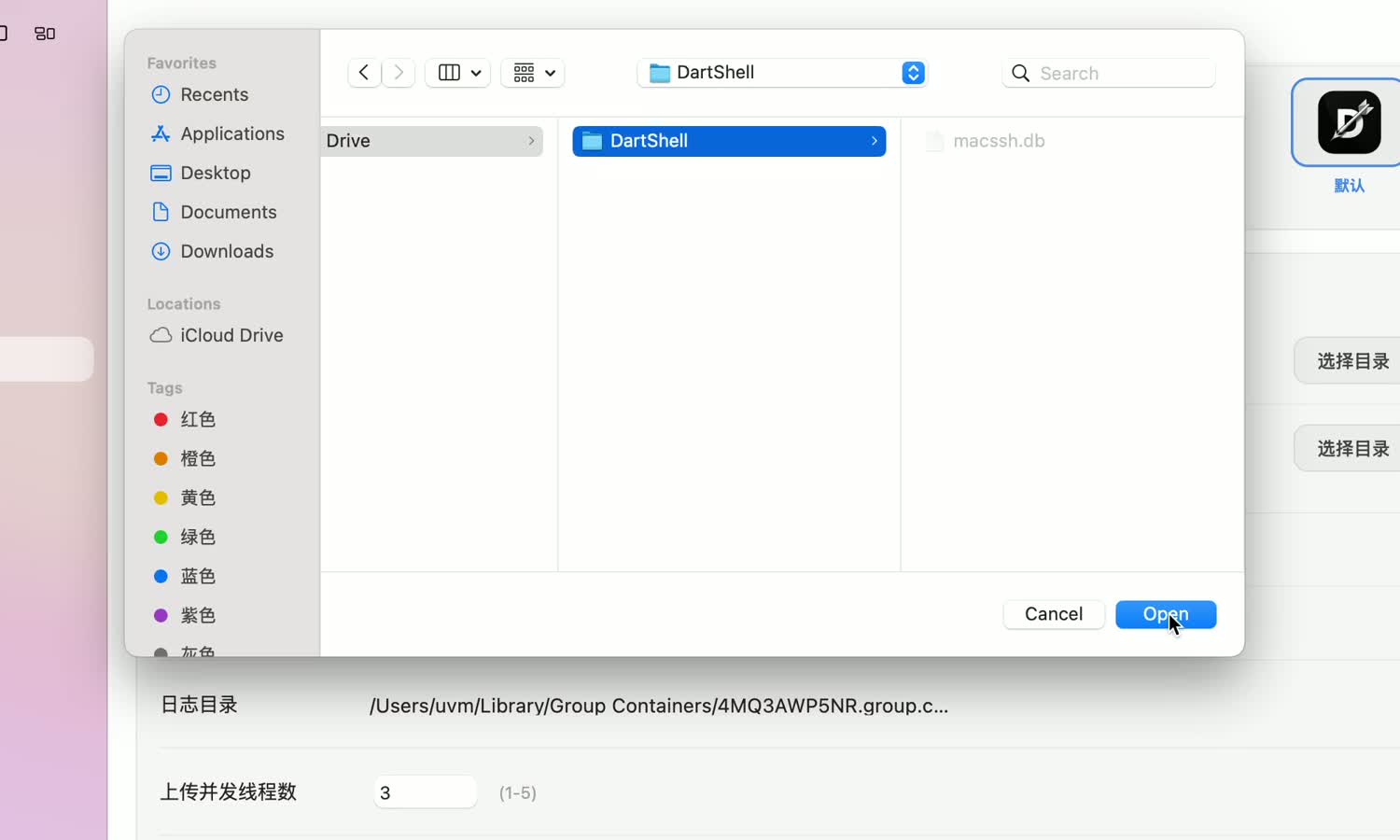
Reopen DartShell. In Settings, use Choose Directory (选择目录) beside Configuration Directory. In the file chooser, select the DartShell folder containing the copied files, then click Open.Select the folder containing macssh.db, not the database file itself. The screenshots retain the original Chinese interface; the directory and file names identify the same items in an English interface.
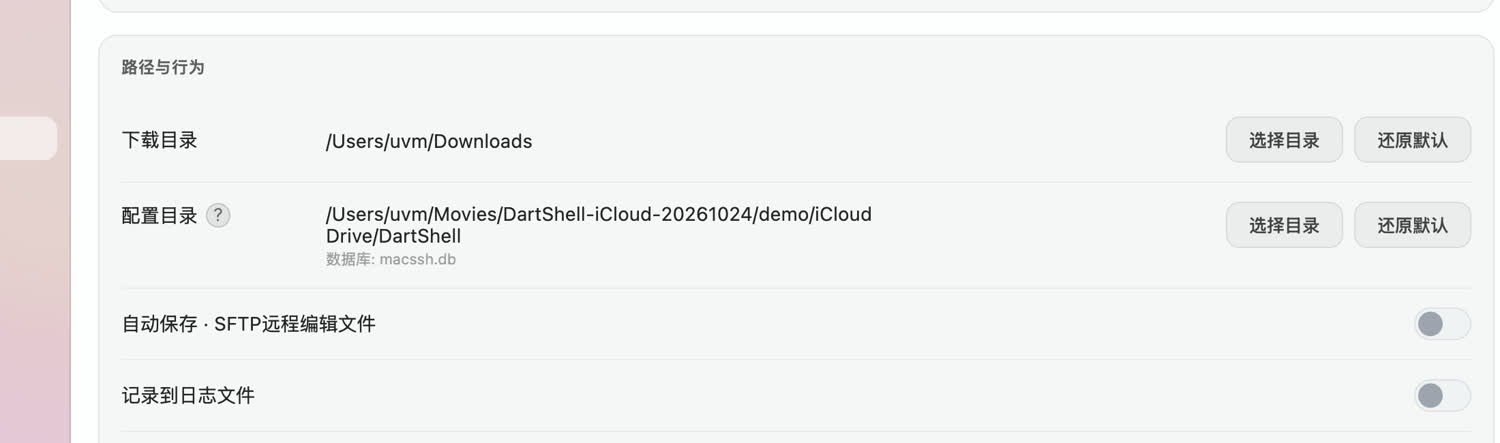
Back in Settings, verify that the configuration directory points to the selected folder. Quit and reopen DartShell, then check that your saved hosts are present.
3. Select the same folder on the other Mac
Quit DartShell on the first Mac and wait for iCloud Drive to finish syncing.In Finder on the other Mac, open the same cloud folder. Confirm that macssh.db is present and fully downloaded. Wait if it is still transferring or is only a cloud placeholder.
Open DartShell on that Mac, go to Settings → Configuration Directory → Choose Directory, and select the same cloud folder. Complete this selection on each Mac; their full local paths do not need to be identical.
4. Check the hosts, then test a connection
Quit and reopen DartShell. In Hosts, compare the saved names, groups, addresses, and ports with the original configuration.
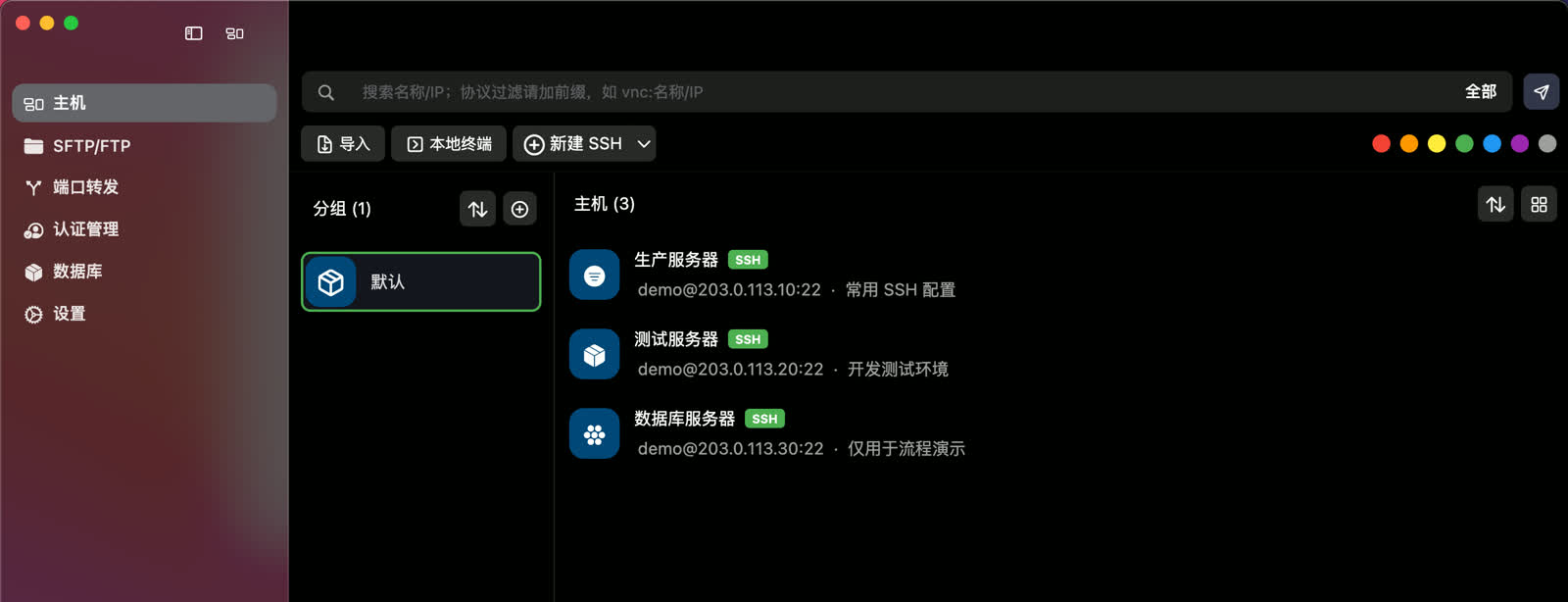
Then open a connection to verify that it works. Matching host lists and working connections are two separate checks. If a connection depends on a local file, confirm that the file is accessible on this Mac too.
Use the shared configuration one Mac at a time
Quit on one Mac, let syncing finish, then open on the other. File synchronization is not a mechanism for concurrent database editing across devices.Keep the original backup: sync does not replace backup. Check folder authorization, local files, and relevant preferences on each Mac separately.
If the host list is empty after switching, check that you selected the folder containing your original macssh.db, that the file is downloaded, and that you did not select another folder with the same name. Reopen DartShell after confirming those details.
Related workflows
DartShell
Want a smoother remote ops workflow on macOS?
DartShell brings SSH, RDP, VNC, SFTP, and serial access together in one native macOS app, so you can reduce tool switching and repetitive setup.
Download DartShell