
Remote Control Windows from a Mac: A Beginner's Guide
Many people first look into remote control when a family member's Windows PC has a problem but they only have a Mac, or when they want to keep using software on an office Windows computer after going home.
Put simply, remote control shows another computer's screen on your Mac. Your mouse and keyboard actions still happen on that other computer. That is why a successful connection depends not only on the app installed on your Mac, but also on whether the other computer is ready and its user has allowed the session.
The preparation differs between two common situations: helping someone with a one-off problem, and regularly connecting to your own computers or servers.
One-time help: ask for a device ID and verification code
Imagine you are helping a family member install an app or find a file, and they are not comfortable changing network settings. The priority is to keep their side simple.
An assistance tool such as UU Remote uses a device ID and verification code to identify and authorize the other computer. Think of the device ID as that computer's number in the app, and the code as a temporary pass for this session. The ID alone is not enough: the other person must provide the current code and complete the authorization requested by the app.

Prepare in this order:
- Install and open UU Remote on both computers, and keep them online.
- Ask the person who needs help to open UU Remote on their computer and send you the device ID and current verification code.
- Enter those details on your Mac and follow the on-screen instructions to request a connection.
- The other person should confirm it is really you before allowing assistance. End the session when the work is done, and do not share the temporary code with anyone else.
This approach usually avoids the need to work out a public address yourself. In other words, you do not first have to make a home computer directly reachable from an outside network. Both clients still need to run normally, however, and the other computer cannot be switched off or disconnected.
Regular access: save the connections you use often
If you use Windows office software one day and sign in to a Linux server the next, repeatedly looking up addresses, accounts, and ports soon becomes confusing.
It is more convenient to keep frequent connections together. DartShell is a remote connection tool for Mac, and DartShell Pro can manage these two common connection types:
- RDP is mainly used to operate Windows. Once connected, you see the Windows desktop and can open applications as if you were sitting at that computer.
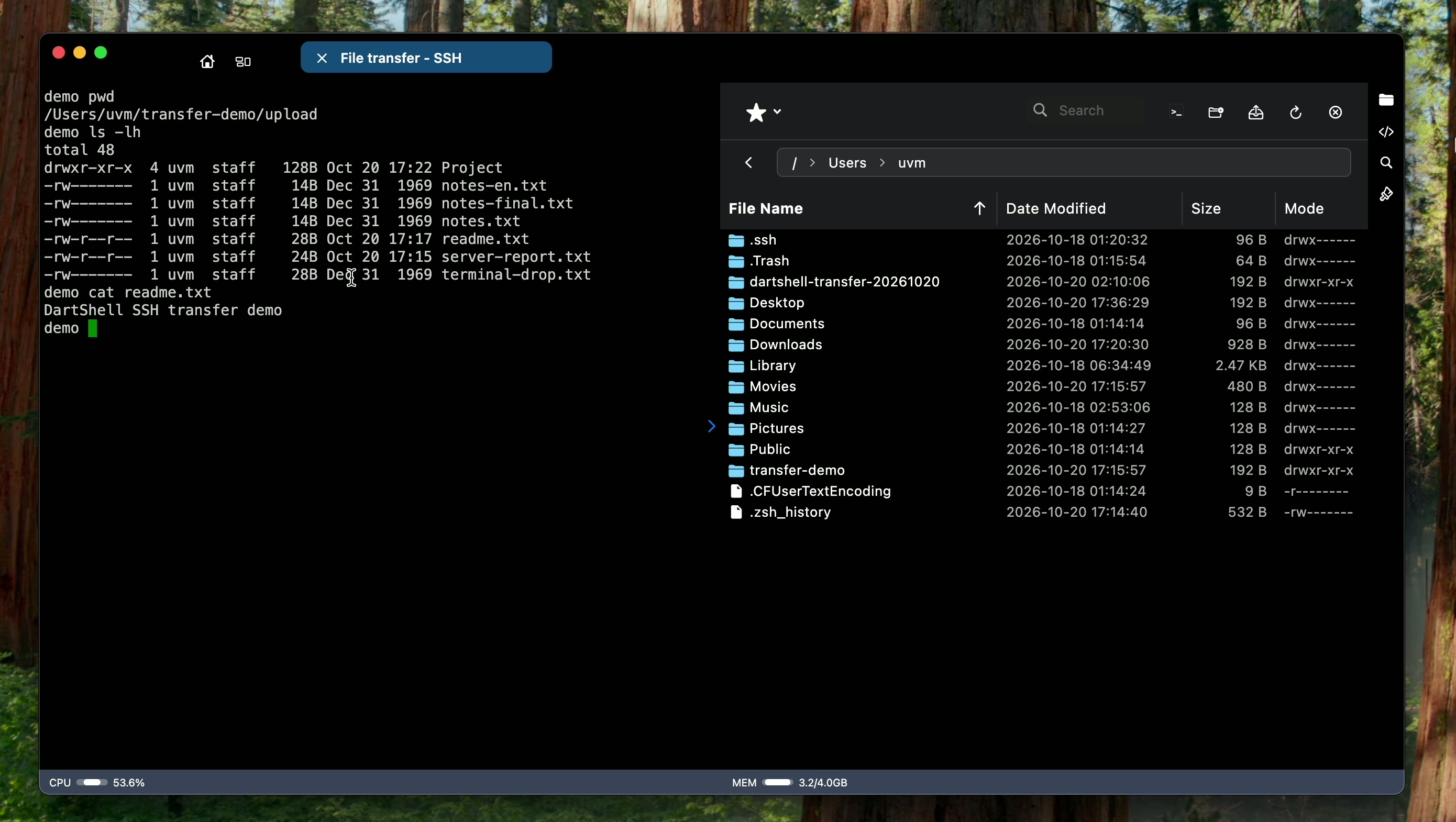
- SSH is mainly used to enter commands on a server, such as checking whether a program is running. It opens a command-line window, not a Windows desktop.
Search for DartShell in the Mac App Store to find it. Open an RDP connection when you need a Windows desktop, and switch to SSH when you need to run commands on a server. There is no need to scatter each computer's details across different places.
To connect to Windows, create or open a host in DartShell. In Host Details, set Protocol to RDP, then enter the Windows computer's address, login account, and Remote Desktop port. Once saved, you can return to that host directly next time.

The 127.0.0.1 address and 13389 port in the image are examples from a test environment; do not copy them. 127.0.0.1 means the current computer, so entering it without checking could connect to the wrong machine. Use the actual address of your Windows PC. Check its configured port with Windows or your network administrator: 3389 is the usual default, but a changed setup requires the changed port.
If Windows will not connect, check these four things
Entering the details on your Mac is only half the job. Whether RDP works often depends more on the Windows side. If it fails, check in this order.
First, check the Windows edition. Windows Home cannot act as the host for the operating system's built-in RDP. You can install software on Home to connect to another computer, but another computer cannot connect to it through built-in RDP. Do not upgrade Windows just for this before deciding whether you really need RDP; for one-time assistance, the device ID and verification code approach above is simpler.
Second, make sure Remote Desktop is enabled. On a supported Windows edition, open Settings, find Remote Desktop settings, and turn on Remote Desktop. Also confirm that your account is allowed to sign in remotely and that its password is correct.
Third, check whether the two computers can reach each other. An address that works at the office may not work from home. If the computer is only available on the company network, first connect through the VPN required by your company, or ask an administrator for an approved connection method. Do not expose Remote Desktop directly to the public internet just to make a connection work.
Fourth, check that Windows is still running normally. Changing the account or port on your Mac will not help if the computer is off, asleep, or offline. Make sure it is connected to the network and its Remote Desktop service has not been disabled.
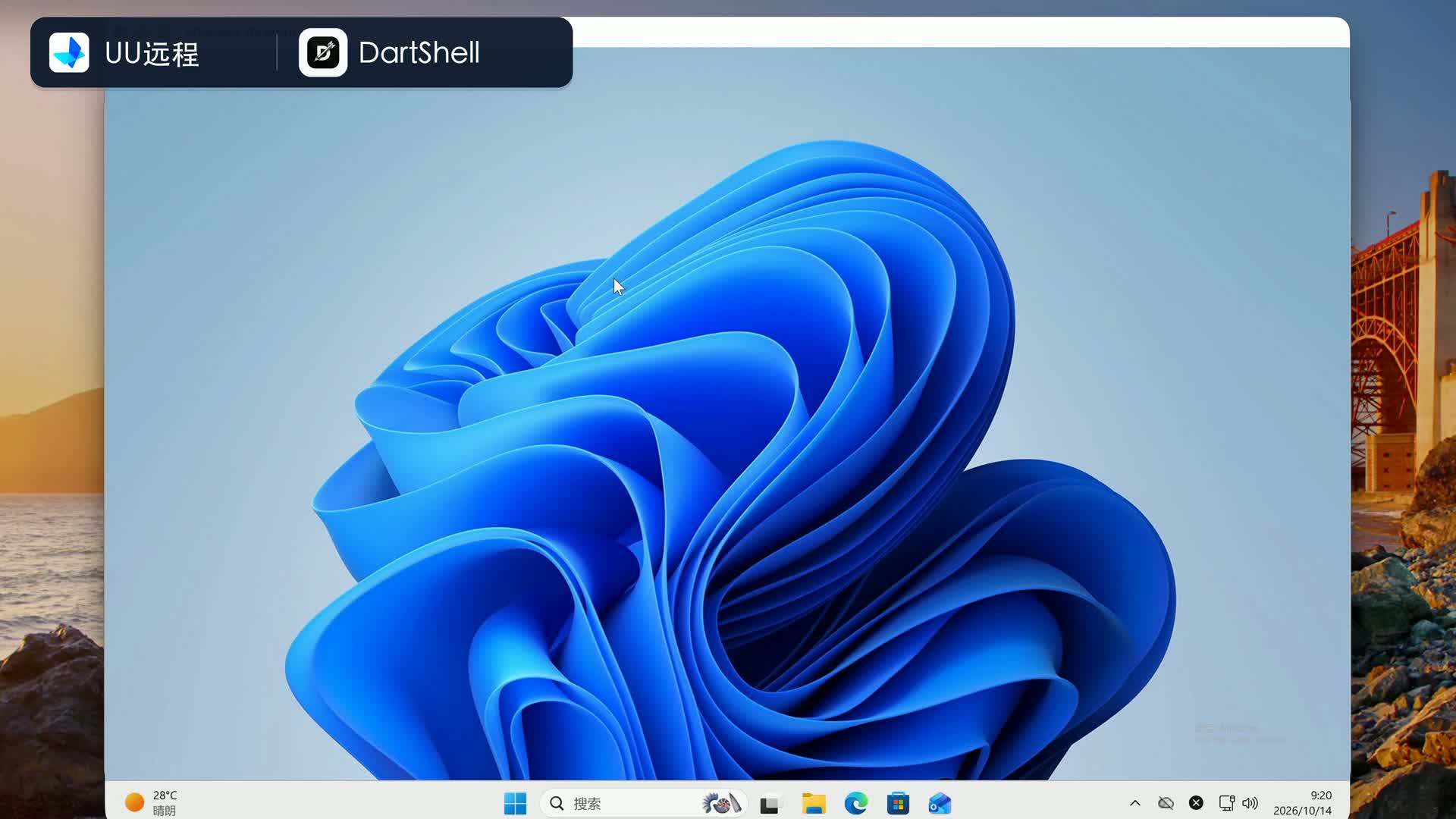
After the Windows desktop appears, do not assume everything is ready. Open the application you actually need and read a file you need to work with, so you can check the account's permissions too. Seeing a desktop and being able to finish your work are different checks.
To return to the original question: for one-time help with a family member's or colleague's computer, ask them for a device ID and verification code. For regular access to your own Windows computer or server, save your RDP and SSH connections together. Deciding which situation you are in first is much easier than starting with technical terms.
Related reading
- RDP Client for Mac: Windows App or DartShell? explains how the Microsoft client and DartShell fit different remote-working routines.
- VNC on Linux from a Mac covers a graphical Linux desktop instead of a Windows RDP connection.
Related reading
More on the same problem, in the order most people need it.
- RDP Client for Mac: Windows App or DartShell?
Choose a Mac remote desktop client by checking Windows host requirements, direct PC access, and separate SSH/SFTP…
- Intel Mac Compatibility Is Shrinking
Macs currently fall mainly into two architecture categories: traditional Intel chips and Apple Silicon (M-series…
- How to Choose an RDP Client for Mac
A practical guide to three common Mac RDP client tiers—Microsoft Windows App, Jump Desktop with Fluid, and…
DartShell
Want a smoother remote ops workflow on macOS?
DartShell brings SSH, RDP, VNC, SFTP, and serial access together in one native macOS app, so you can reduce tool switching and repetitive setup.
Download DartShell