
How to Choose an RDP Client for Mac: Windows App, Jump Desktop, or DartShell
If you work on a Mac and regularly need to connect to a Windows PC for specific apps or files, choosing the right remote desktop client is often the first hurdle. Rather than comparing endless feature tables, it helps to group common Mac RDP options into three practical categories based on what you actually connect to.
Before You Choose: What RDP Is and What Windows Needs
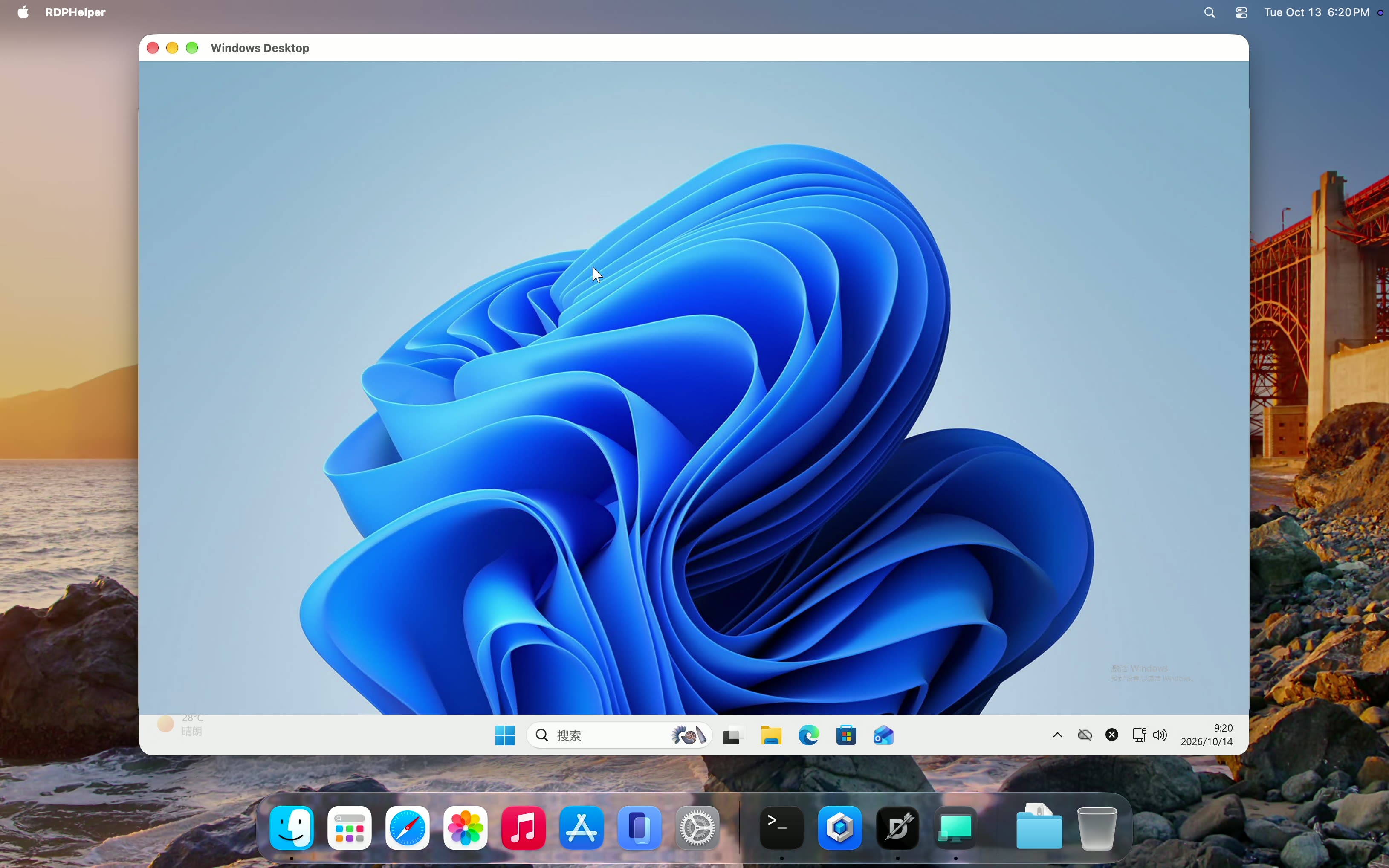
When people talk about connecting to a Windows desktop from a Mac, the standard built-in method is RDP (Remote Desktop Protocol). Simply put, RDP streams the full desktop of another Windows computer into a window on your Mac so your Mac keyboard and mouse control it directly.
No matter which RDP client you pick on macOS, three basic prerequisites apply on the Windows side:
- The target Windows PC must support Remote Desktop hosting (Windows Home editions do not act as standard RDP hosts; Windows Pro or Enterprise is typically required).
- Remote Desktop must be turned on in Windows System Settings.
- Your Mac needs a reachable network path to that Windows PC, along with a Windows account that has permission to sign in remotely.
Once those basics are in place, picking between the three client types becomes straightforward.
1. Connecting to One or Two Windows PCs or Cloud Desktops: Microsoft Windows App
If you only need to connect to a couple of personal or office Windows PCs—or access company-managed cloud desktops such as Azure Virtual Desktop or Windows 365—Microsoft's official Windows App (formerly Microsoft Remote Desktop) covers the essentials cleanly.
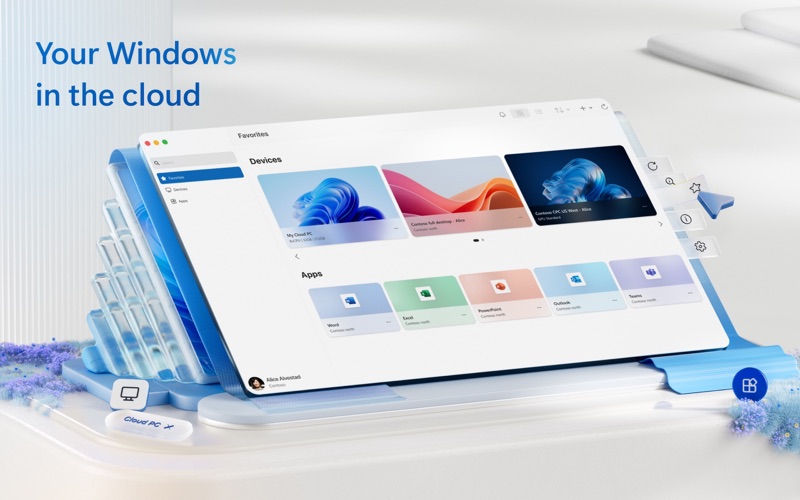
Its main strength is simplicity: enter your Windows PC address and credentials to connect, with clipboard sharing and local folder redirection built in. If Windows desktops are the only remote machines you touch, there is rarely a reason to add extra complexity.
2. Prioritizing Smooth Cross-Network Responsiveness: Jump Desktop
If you work remotely across networks frequently—or spend hours dragging windows and using graphics-heavy apps where responsiveness and frame rate matter—Jump Desktop is a widely considered option.
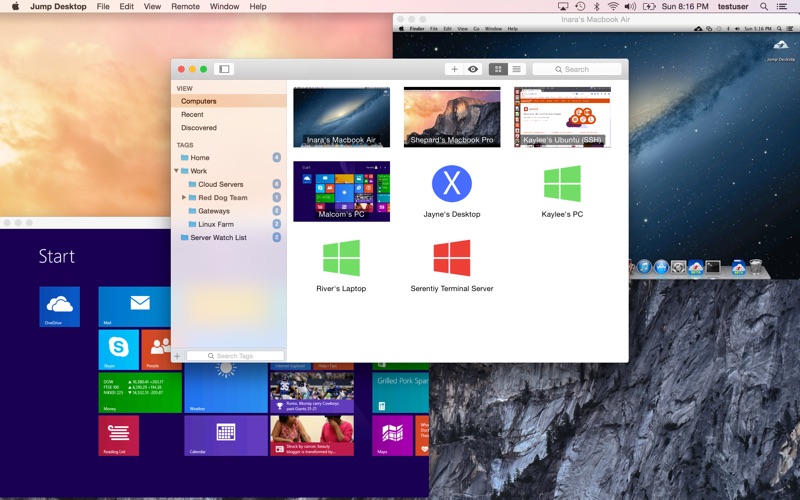
What sets it apart from standard RDP clients is that alongside regular RDP support, it includes its own Fluid remote desktop protocol designed specifically for smooth, high-frame-rate streaming. If you only connect occasionally over a fast local office network, you may not need that extra protocol layer, but for heavy cross-network desktop sessions it is a clear differentiator.
3. Managing Both Windows PCs and Linux Servers Together: DartShell
Many developers, IT admins, and power users manage a mix of environments: a few Windows desktops alongside Linux servers. Keeping one app open for Windows RDP, another terminal for Linux commands, and a separate file client for transfers quickly turns into window-switching fatigue.
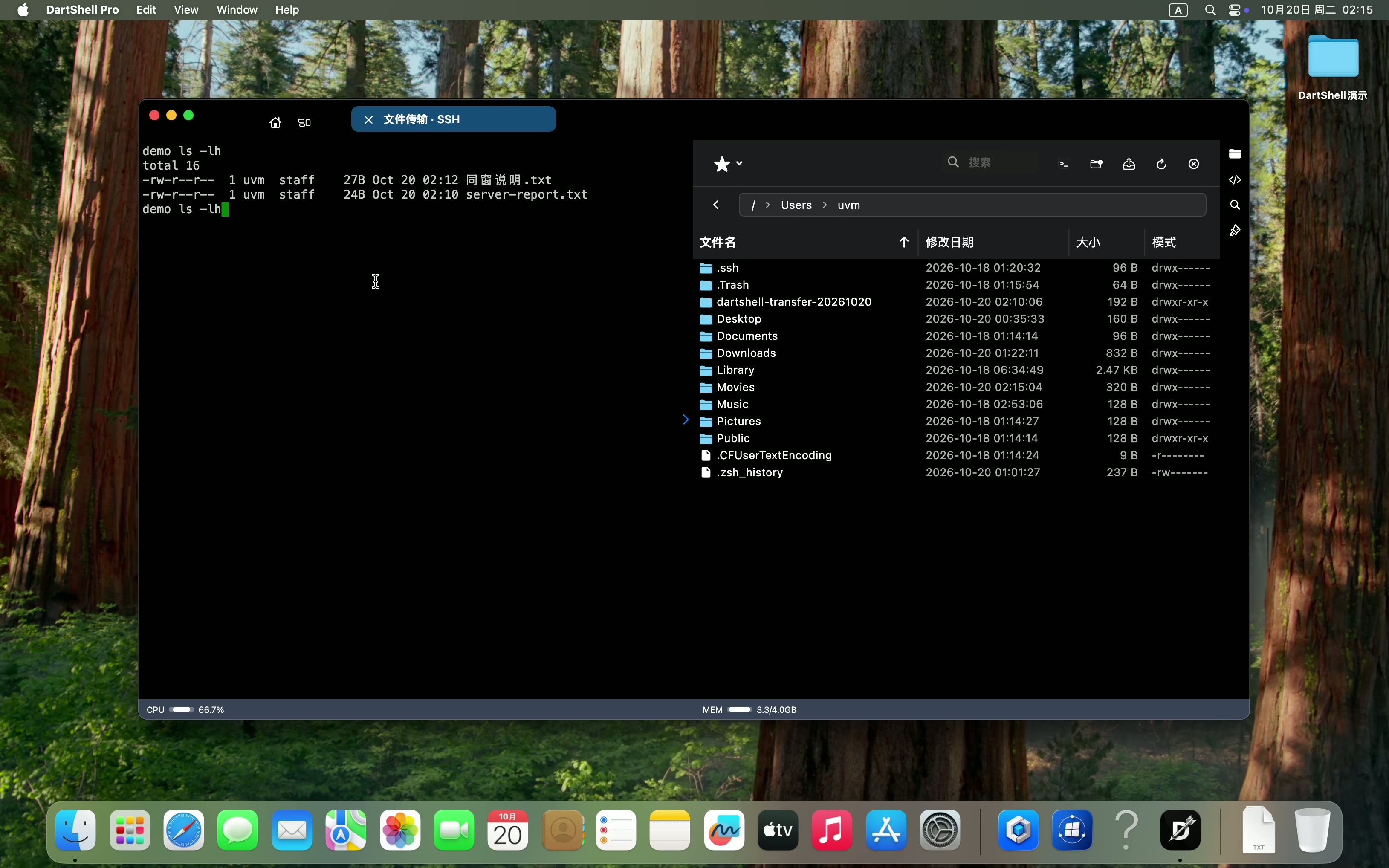
In that workflow, keeping all connections in one macOS workspace is much cleaner. DartShell is a multi-protocol remote connection and server management app for macOS that brings Windows Remote Desktop (RDP), Linux command-line access (SSH), and encrypted file transfer (SFTP) into a single organized host list. You can double-click a Windows host for its desktop and open an SSH terminal with side-by-side SFTP files for a Linux server in the same app.
To try DartShell on macOS, open the Mac App Store on your Mac and search for DartShell.
Choosing Based on Your Daily Workflow
- One or two Windows PCs or Microsoft cloud desktops: Start with Microsoft's official Windows App.
- Frequent cross-network remote work where high frame rate and fluidity come first: Look at Jump Desktop for standard RDP plus its Fluid protocol.
- Mixed Windows desktops and Linux servers in one Mac workspace: Consider DartShell to keep RDP, SSH, and SFTP together.
Which remote desktop client do you rely on from your Mac? Share your setup and workflow in the comments.
Related reading
More on the same problem, in the order most people need it.
- RDP Client for Mac: Windows App or DartShell?
Choose a Mac remote desktop client by checking Windows host requirements, direct PC access, and separate SSH/SFTP…
- Intel Mac Compatibility Is Shrinking
Macs currently fall mainly into two architecture categories: traditional Intel chips and Apple Silicon (M-series…
- Remote Desktop Blurry on Mac: How to Fix Image Quality and Scaling
If you connect from a Mac to a Windows desktop and the picture looks soft, the cause is almost never "RDP is just…
DartShell
Want a smoother remote ops workflow on macOS?
DartShell brings SSH, RDP, VNC, SFTP, and serial access together in one native macOS app, so you can reduce tool switching and repetitive setup.
Download DartShell