
Can You Use Microsoft Remote Desktop for Mac-to-Mac Remote Access? The Answer, the Reason, and Better Options
When people look for a remote access tool on a Mac, Microsoft Remote Desktop is often the first thing that comes to mind. The name is straightforward, and the function is clear enough, so it is easy to assume: if it can do remote desktop, then it should also work for connecting to another Mac.
But once you actually try it, you will often find that things are not that simple.If your goal is Mac-to-Mac remote access, then Microsoft Remote Desktop is not the right solution by default. The issue is not whether it is Microsoft's official client, nor whether it can run on a Mac. The real issue is the protocol it relies on, and whether the target system provides the corresponding server-side capability.
Why Microsoft Remote Desktop Cannot Connect Directly to a Mac by Default
Microsoft Remote Desktop has now been renamed Windows App, but at its core it is still a remote desktop client based on the RDP protocol.That means whether a remote connection succeeds does not mainly depend on the client, but on whether the target machine supports an RDP server. As long as the server side supports RDP, the client can theoretically connect; if the target system does not provide an RDP service, then no matter how complete the client is, it still cannot directly establish a remote desktop session.
This is also why connecting to Windows is usually much smoother. Windows has more complete support for RDP, and in many cases you can start using it simply by enabling Remote Desktop. Linux and macOS are not in that default state.
In other words, Microsoft Remote Desktop is not incapable of connecting to non-Windows systems; it is that non-Windows systems do not necessarily provide a connectable RDP service by default.
Why Windows Works but Mac Does Not
If you break it down, the reason is actually quite clear:
- Windows provides relatively complete RDP remote desktop support by default
- Linux can support RDP through additional server-side installation
- macOS does not provide a native RDP server by default
So if you try to use Microsoft Remote Desktop to connect directly to another Mac, it will usually fail. That is not because a Mac cannot be remotely accessed, but because it does not provide remote desktop through the RDP route by default.
In theory, you can certainly install an additional RDP server on a Mac, such as some open-source solutions. But for most people, that path is neither natural nor convenient. You need to deal with installation, configuration, permissions, and compatibility, all just to achieve something for which the system already offers a simpler alternative.
For Mac-to-Mac Remote Access, Screen Sharing Is the More Direct Option
If what you want is to see another Mac’s interface and operate it directly, then the more suitable approach is usually not RDP, but VNC, specifically the built-in macOS Screen Sharing feature.
On the target Mac, go to:
Settings -> General -> Sharing -> Turn on Screen Sharing
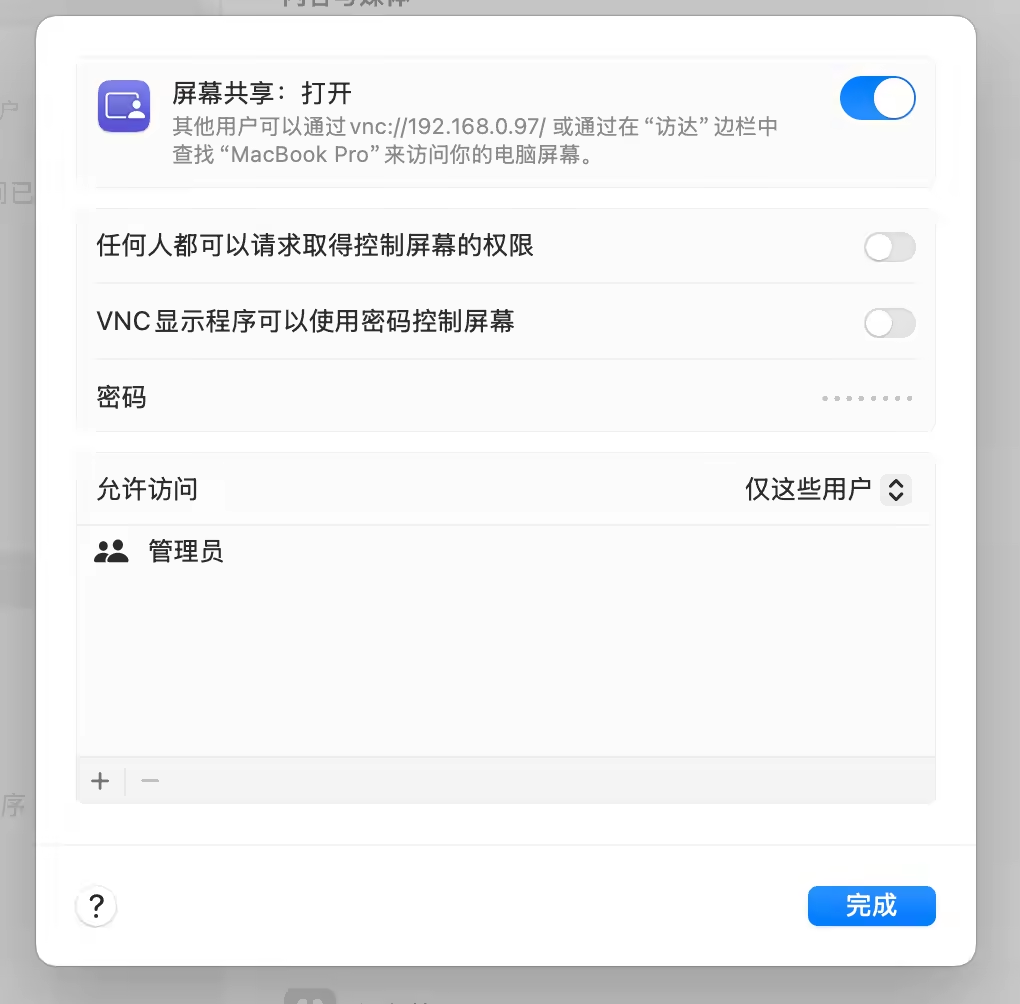
Once enabled, the system will tell you how to access this machine. In practice, the most common approach is to enter an address like the following in a browser or in Finder:
vnc://192.168.0.97This lets you directly remote-control another Mac.This method is especially well suited to very specific everyday situations. For example, you might have a primary Mac at hand and a Mac mini beside it for testing; or another Mac might be compiling in the background, running tasks, or downloading files, and you just want to switch over occasionally to glance at the screen, click a few windows, and do some light operations. In cases like these, Screen Sharing is usually more straightforward than first setting up an RDP service.
If You Don't Need a Desktop, SSH Is Often More Efficient
There is another common scenario: you do not necessarily need to "see the desktop" and simply want to log in to another Mac to do some system maintenance.
For example:
- Modify configuration
- Run commands
- View logs
- Transfer files
- Handle lightweight remote maintenance tasks
If that is what you need, a remote desktop is often unnecessarily heavy. A more suitable option is usually to enable Remote Login directly, which means SSH.
This is also in the system sharing settings, where you can turn on:
Settings -> Sharing -> Turn On Remote Login
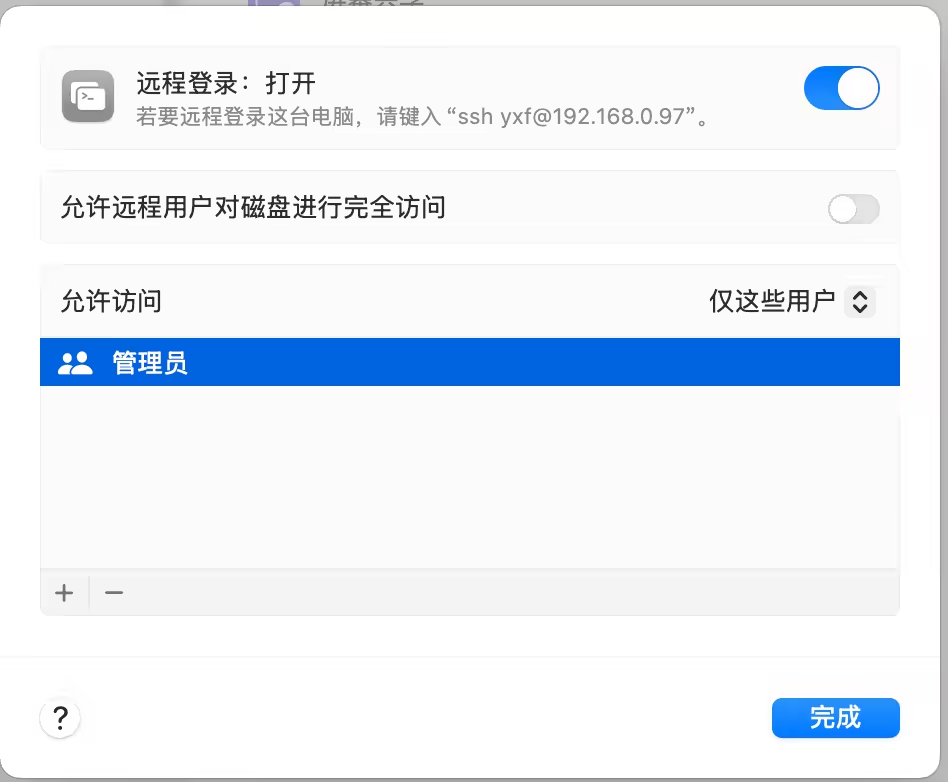
After that, you can log in to this Mac via SSH.
From a practical workflow perspective, these two approaches solve two different kinds of problems:
- VNC / Screen Sharing: Best for scenarios where you need to see the interface, operate windows, or take over the desktop
- SSH / Remote Login: Best for command-line maintenance, checking status, and executing tasks
In many cases, low remote-work efficiency is not caused by the lack of some "more powerful" tool, but by mixing up the protocol and the use case from the very beginning.
In real workflows, matching the protocol matters more than piling on tools
In day-to-day operations and remote management, what most often gets people stuck is not the connection itself, but constantly switching back and forth between different protocols and tools.One machine uses remote desktop, another uses a terminal, and transferring files requires opening yet another tool. Once the number of machines grows, what really consumes time is not "whether a connection is possible," but "which method should I use right now for this specific task?"
That is why more and more users are starting to care about a unified workflow, rather than just isolated features. This is exactly the idea behind a one-stop remote operations tool for macOS like DartShell: bringing common remote tasks such as SSH, RDP, SFTP, and databases into the same workflow as much as possible, and reducing the cost of constantly switching between protocols and tools.
For the question of Mac-to-Mac remote access, the answer itself is actually not that complicated. What makes it complicated is that many people are first led astray by the concept of "remote desktop" and instinctively start thinking in terms of RDP, which only takes them further off track.
Conclusion: For Mac-to-Mac connections, prioritize VNC or SSH
If you are asking whether Microsoft Remote Desktop can be used for Mac-to-Mac remote access, the answer is:
By default, not directly.
The reason is simple:
- It relies on RDP
- macOS does not provide a native RDP server by default
- So unlike connecting to Windows, it cannot directly establish a remote desktop session
If your goal is to connect to another Mac, the more reasonable choices are usually:
- If you need desktop control: prioritize Screen Sharing / VNC
- If you need command-line maintenance: prioritize SSH
Separate the scenario first, then choose the protocol. Remote access becomes much simpler that way. If you are looking for a more unified macOS remote workflow, you can also continue exploring DartShell's related solutions and practical articles.
DartShell
Want a smoother remote ops workflow on macOS?
DartShell brings SSH, RDP, VNC, SFTP, and serial access together in one native macOS app, so you can reduce tool switching and repetitive setup.
Download DartShell